How to troubleshoot a Galaxy phone not connecting to a Wi-Fi network

What to do if the Wi-Fi network is not detected?
Step 1. Make sure the router is available
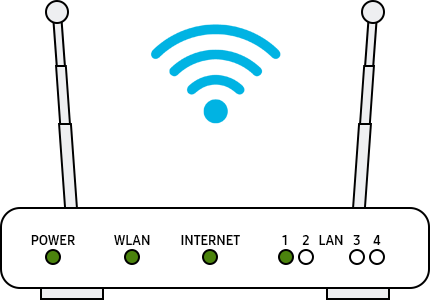
Note:
- The router display may vary from device to device. Check with your router provider.
Step 2. Restart the devices
Try restarting your Galaxy phone, router, and modem.
Step 1. To restart your phone, tap the Power icon in the Quick panel, then tap Restart.
Step 2. Turn your router and modem off and on again. When turning the router and modem off, unplug the power plug and plug it back in, and then turn on the power.
Step 3. After you restart each device, see if you fixed the issue.
Step 3. Reset the network setting
Follow the steps below to reset the network settings and turn on Wi-Fi again.
Step 1. Go to Settings, and then select General management.
Step 2. Find and select Reset.


Step 3. Choose Reset Wi-Fi and Bluetooth settings.
Step 4. Tap on the Reset settings button.


Step 5. Next, you will see a message indicating that the Wi-Fi and Bluetooth settings have been reset.



Note:
- When you reset the network settings, the Wi-Fi information, mobile data, and Bluetooth connection are reset.
Step 4. Start your device in Safe mode again
Try the Wi-Fi connection in Safe mode. If the Wi-Fi network is connected in Safe Mode, it may be a problem caused by the downloaded app on your phone, and that app should be uninstalled. To find which app causes a Wi-Fi issue, you can try uninstalling the apps in the order of the last installation.
Step 1. Open Quick settings. Tap the Power icon at the top of the screen.
Step 2. Touch and hold Power off until the Safe mode icon is displayed.
Step 3. Tap Safe mode to start your device in Safe mode. If you've entered Safe mode successfully, you will see Safe mode displayed at the bottom of the screen.


Step 5. Make sure that you´re using the correct Wi-Fi password


If there is a lock mark inside the Wi-Fi network icon, it is a password protected network. When entering the password, be careful and enter it correctly. Wi-Fi passwords are case-sensitive.
Step 6. Perform a Factory data reset
If the above methods do not work, you may bring your device back to the factory default settings just like when you powered on your device for the first time.
Step 1. Go to Settings, and then select General management.
Step 2. Select Reset, and then tap on Reset accessibility settings.
Step 3. Scroll down the page and tap on the Reset settings button.
Step 4. Tap on the Delete all button.
Note:
- Factory data resetting a mobile device is not reversible.
- Make sure that all of your information is saved to a backup somewhere else before attempting to reset your phone.


Service Centers


Locate the nearest Samsung service center to have your product checked.
Thank you for your feedback!
Please answer all questions.
Contact Info
WhatsApp
![WhatsApp]()
![WhatsApp]()


Monday to Sunday
8:00 a.m. a 12:00 a.m.
LiveChat
![LiveChat]()
![LiveChat]()


Monday to Sunday
8:00 a.m. a 12:00 a.m.