Recover your Samsung account ID and reset your password
A Samsung account helps you utilise specific apps and services, such as Samsung Pass and Samsung Find, as well as backing up data to Samsung Cloud. In the case that you cannot remember your account credentials, you can recover your Samsung account ID or reset the password to regain access to your account.
Script: What To Do If You Can’t Log Into Your Samsung Account
A Samsung account helps you get the most from your Galaxy device — from services like Samsung Pass and Samsung Find, to backing up your data with Samsung Cloud.
If you’re having trouble signing in, don’t worry.
Here’s what to do if you can’t log into your Samsung account — and how to get back in safely.
Please note: if you no longer have access to both the email address and the phone number used to create your Samsung account, you’ll need to contact Samsung Customer Support.
Alternatively, you can create a new Samsung account using a different email address.
Forgot Your Samsung Account ID
If you’ve forgotten your Samsung account ID — which is usually the email address you signed up with — you can recover it using an email hint.
- First, open Settings, then tap Samsung account.
- Select ‘Forgot password or don’t have an account?’, and choose ‘Forgot ID’.
- Enter the requested information and tap Continue.
- You’ll then see a list of email ID hints linked to your account.
- Once you recognise your account, tap ‘Sign in now’ to continue.
Forgot Your Samsung Account Password
If you remember your account ID but can’t recall your password, you can reset it securely.
- Open ‘Settings’, tap ‘Samsung account’, then select ‘Forgot password or don’t have an account?’.
- Choose ‘Forgot password’, enter your email address, and tap ‘Continue’.
- You’ll be asked to confirm your phone number and enter a verification code.
- Once verified, you can create a new password and tap ‘Next’.
Password Reset Methods
Depending on your account setup, you may be offered different ways to reset your password.
1. Reset via Primary Email
- Choose ‘Email verification’, then tap ‘Continue’.
- An email will be sent to your primary email address.
- Open the message, follow the instructions, and enter your new password.
2. Reset via Security Question
If you’ve set up a security question, select ‘Verify with security question’.
Answer the question, then create a new password.
3. Reset via Recovery Email
- Select ‘Verify with recovery number or email’, then choose ‘Recovery email’.
- Follow the instructions sent to your recovery email address, and set a new password.
4. Reset via Recovery Phone Number
Alternatively, choose ‘Recovery phone number’.
Verify your details, enter the code sent by SMS, and create a new password.
You’ll also be asked whether you’d like to stay signed in on other devices, or sign out for added security.
Can’t Access Your Registered Phone Number?
This next step is especially important, and it’s one that’s often missed.
If you no longer have access to the phone number registered to your Samsung account, you won’t be able to receive verification codes — and that can prevent you from signing in.
For security reasons, changing your registered phone number takes two weeks.
This waiting period helps protect your account from unauthorised access, even though it may take a little patience.
To begin,
- Go to the Samsung account sign-in page.
- Sign in using your account details, then select ‘Need to change your phone number?’ when prompted.
- You’ll be asked to confirm your old number and verify your account using a code sent to your registered email address.
- After that, you can enter your new phone number and complete the verification.
Once the request is submitted, please wait the full two weeks as submitting another request during this time will restart the waiting period.
If You’re Still Having Issues
If you’re still unable to access your account after two weeks, Samsung Customer Support can help — or assist you in creating a new Samsung account if needed.
2-Step Verification Note
Please remember: two-step verification is mandatory for Samsung accounts with a registered phone number.
You can learn more about how it works on the Samsung Support website.
Your Samsung account ID can be obtained through your phone number or Email ID hint.


Step 1. Open Settings > Select Samsung account.


Step 2. Select Forgot password or don’t have an account?


Step 3. Select Forgot ID.
Recovery by Email ID hint


Step 1. Tap Trouble getting your account ID?


Step 2. Enter the requested information > Tap Continue.


Step 3. Review the Email IDs listed > Tap Sign in now > Sign into your account.
Recovery by secondary phone number or email address


Step 1. Enter your recovery (secondary) phone number or recovery (secondary) email > Tap Continue.


Step 2. Enter the requested information > Tap Continue.


Step 3. Verify that the phone number or email displayed is yours > Tap Send code > Enter the verification code or PIN number > Tap Verify.


Step 4. Select an email ID > Tap Sign in now > Sign into your account.
Follow the steps below first, then choose one of the four methods in the next section to reset the password.


Step 1. Open Settings > Select Samsung account.


Step 2. Enter your account ID > Tap Next.


Step 3. Select Forgot password?


Step 4. Enter your email ID > Tap Reset password.


Step 5. Enter your account phone number > Tap Continue.
1. Reset password through primary email


Step 1. Select Email verification > Tap Continue.


Step 2. Tap Go to inbox > Follow the instructions in the email.
* If you do not see the Go to inbox button on your phone, please check your email inbox directly.


Step 3. Enter a new password > Tap Next.
* You can choose to sign out or stay signed into your Samsung account on other devices that have active login sessions.
* In some countries where you can sign up with a mobile phone ID, you can also reset your password through phone number verification.
2. Reset password by security question


Step 1. Select Verify with security question.


Step 2. Answer your security question > Tap Verify.

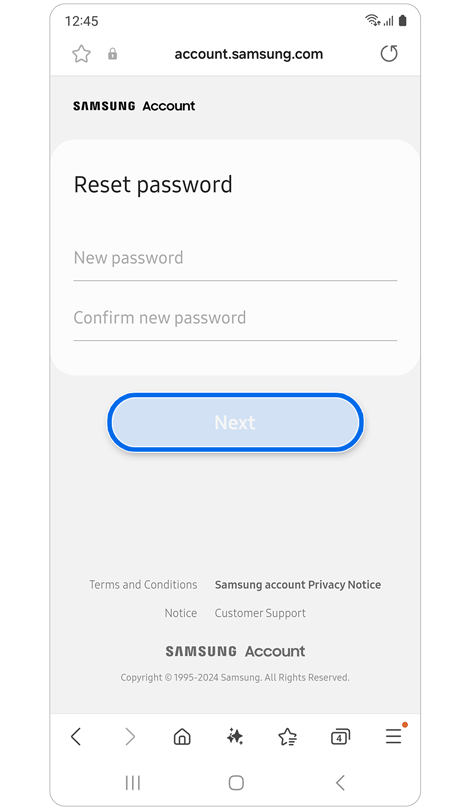
Step 3. Enter a new password > Tap Next.
* You can choose to sign out or stay signed into your Samsung account on other devices that have active login sessions.
* To reset your password with a security question, you must have already registered a security question in your Samsung account settings.
3. Reset password by recovery email


Step 1. Select Verify with recovery number or email.


Step 2. Select Recovery email > Tap Continue > Tap Go to inbox > Follow the instructions in the email.


Step 3. Enter a new password > Tap Next.
* You can choose to sign out or stay signed into your Samsung account on other devices that have active login sessions.
* To reset your password with a recovery email, you must have already registered a recovery email in your Samsung account settings.
4. Reset password by recovery phone number


Step 1. Select Verify with recovery number or email.


Step 2. Select Recovery phone number > Tap Continue.


Step 3. Enter your birthdate > Tap Continue.


Step 4. Verify the phone number displayed is yours > Tap Send code > Enter Verification code > Tap Verify.


Step 3. Enter a new password > Tap Next.
* You can choose to sign out or stay signed into your Samsung account on other devices that have active login sessions.
* To reset your password with a recovery phone number, you must have already registered a recovery phone number in your Samsung account settings.
Thank you for your feedback!
Please answer all questions.