How to use Samsung Members Diagnostics
Important Note: The information on this page is for Hong Kong products only. Models, sequences or settings will vary depending on location and/or where the product had been purchased. To be redirected to your local support page please click here.
With the Diagnostics feature in the Samsung Members app, you can check several aspects of your smartphone to make sure everything is working properly. You can also share info with other Samsung users, read news, tips and more thanks to the Samsung Members app.
Before you use the Diagnostics feature, be sure to verify that your device's software and related apps are updated to the latest version. To update your mobile device's software, follow these steps: Device settings > Software update.
How to diagnose your phone using Samsung Members


Step 1. Open the Samsung Members app and tap “Support”.


Step 2. Tap “View tests”.


Step 3. Tap “Test all” to start Diagnostics.
Follow the on-screen instructions to test the performance of your smartphone. You can skip some parts of the process and return to them whenever you want. If you want to review a specific function of your smartphone, simply tap on the icon to begin the test.
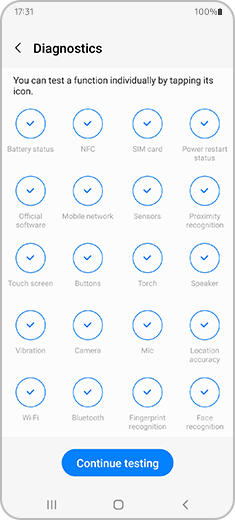
Please note: You must verify your Samsung account to use the Diagnostics feature.
How to report an error from the Samsung Members app
If you have any issues with the performance of your smartphone after the test, you can report it from the Samsung Members app by following the next steps:
If the above information does not match what your product is showing, you may check the User Manual for your product. If you are unable to solve the problem, please contact us for further assistance.
Thank you for your feedback!
Please answer all questions.
RC01_Static Content : This text is only displayed on the editor page