Manage apps on your Samsung Galaxy

Apps help you get the most out of your Samsung Galaxy, whether you use them to stay in touch, work, play games, shop or manage your daily tasks. As you install more apps, you may want to organize them, adjust their settings, manage permissions, free up storage space or remove apps you no longer use.
Note: The information provided applies to Samsung devices sold in Canada. Screens and settings may vary for devices sold in other countries.
Download and install apps
The Google Play Store lets you download apps and games to your Samsung Galaxy. Before you can download apps, make sure you are signed in to your Google account.


Step 1. Open the Play Store app.


Step 2. Look for the app you want to download by browsing categories or using the Search option.


Step 3. When you find the app you want to download, select it, and then tap Install.
Note: If you want to reinstall an app you previously purchased, look for the app again in the Play Store and then tap Install. Make sure you are signed in to the same Google account you used for the original purchase.
The Galaxy Store is another place to find and download apps for your Samsung Galaxy. Some Samsung apps, watch apps, themes, and exclusive content may be available through the Galaxy Store. Before downloading apps, make sure you are signed in to your Samsung account.


Step 1. Open the Galaxy Store app.


Step 2. Look for the app you want to download by browsing categories or using the Search option.


Step 3. When you find the app you want to download, select it, and then tap Install.
Note:
- Depending on the device model and software version, the app may be labeled Galaxy Store or simply Store.
- The app is usually located in the Samsung folder on your Samsung Galaxy Home screen.
- Depending on where you are in the Galaxy Store app, you may be able to download an app by tapping the Download icon (a downward arrow) or the Install button.
Organize apps
You can move app shortcuts to organize them in a way that works best for you. For example, you can place your most-used apps where they are easier to find and access.


Step 1. Touch and hold the app shortcut you want to move to another location.


Step 2. Drag the shortcut to another part of the screen.


Step 3. Release the shortcut when you are satisfied with its new position.
Note: To move the shortcut to another screen, drag it to the edge of the current screen. The screen will automatically change, allowing you to place the shortcut on a different screen.
Apps installed on your Samsung Galaxy appear in the Apps screen. You can also add your favorite apps to the Home screen for quicker access. Removing an app shortcut from the Home screen does not uninstall it, and the app will remain available in the Apps screen.


Step 1. Press and hold the app shortcut until additional options appear.


Step 2. Tap Add to Home to add the shortcut to the Home screen.


Step 3. To remove an app shortcut from the Home screen, press and hold the shortcut until additional options appear. Then, tap Remove.
Note: Depending on the app, device model and software version, the available options may vary when you press and hold an app shortcut.
App folders help keep your Samsung Galaxy organized by grouping similar apps together. For example, you can create separate folders for games, social media, work or other categories, making your apps easier to find.


Step 1. Touch and hold one of the app shortcuts you want to place in a folder.


Step 2. Drag the shortcut onto another one to create a folder containing both shortcuts.


Step 3. Tap Folder name at the top of the screen.


Step 4. Enter a folder name using the virtual keyboard and then tap Done.


Step 5. Tap the colour circle below the folder name to select a colour for the folder icon.


Step 6. Select one of the available colours or customize your own. Then, tap the Close icon (represented by an X inside a circle).


Step 7. Tap the Add apps to folder icon (represented by a + inside a circle).


Step 8. Select the apps you want to add, and then tap Done.


Step 9. Tap the Back icon (represented by the < symbol) to exit the folder.
Note:
- Once a folder has been created, you can add more apps by dragging their shortcuts into the folder.
- You can move a folder the same way you move an app shortcut. Touch and hold the folder, and then drag it to a new location.
- A folder must contain at least two apps. If a folder contains only two apps and you drag one of the shortcuts out of the folder, the folder will be removed and both app shortcuts will be displayed separately again.
You can change how apps are sorted in the Apps screen. If you choose Custom order, you can arrange apps manually, and they may be displayed across multiple screens that you navigate using horizontal scrolling. If you choose Alphabetical order, all apps will be displayed on a single screen in alphabetical order that you navigate using vertical scrolling. The sorting method you choose will affect how you browse and find apps on your Samsung Galaxy.


Step 1. In the Apps screen, tap the More options icon (represented by three vertical dots) on the Search bar.


Step 2. Tap Sort.


Step 3. Select Alphabetical order or Custom order based on your preference.
Note: Depending on the device model, software version and personal settings, the Search bar may be displayed at the top or bottom of the Apps screen.
As you install more apps on your Samsung Galaxy, it can become more difficult to find a specific app in the Apps screen. You can use the Search feature to quickly find and open an app by entering its name.


Step 1. Tap the Search bar to display the virtual keyboard.


Step 2. Enter the name of the app you are looking for.


Step 3. The app will appear in the search results. Simply tap it to open it.
Note:
- You can search for an app by entering all or part of the app name.
- Depending on the device model, software version and personal settings, the Search bar may be displayed at the top or bottom of the Apps screen.
If there is an app you do not want to see in the Apps screen, you can hide it. This will not uninstall the app from your Samsung Galaxy, but it will remove the app icon from the Apps screen. You can also unhide apps at any time if you change your mind.
How to hide apps


Step 1. In the Apps screen, tap the More options icon (represented by three vertical dots) on the Search bar, and then tap Settings.


Step 2. Scroll through the available options and then tap Hide apps on Home and Apps screens.


Step 3. Select the apps you want to hide and then tap Done at the bottom of the screen.
How to unhide apps


Step 1. In the Apps screen, tap the More options icon (represented by three vertical dots) on the Search bar, and then tap Settings.


Step 2. Scroll through the available options and then tap Hide apps on Home and Apps screens.


Step 3. Deselect the apps under Hidden apps by tapping the red minus icons. Then, tap Done at the bottom of the screen.
Note:
- Depending on the device model, software version and personal settings, the Search bar may be displayed at the top or bottom of the Apps screen.
- Hidden apps are not displayed in the Apps screen. However, you can still search for a hidden app by entering its name in the Search bar. The app name, but not the icon, will appear in the search results. Selecting it will take you to the app page, where the option to Open will be available.
Manage app permissions
Some apps require permission to access certain features or information on your Samsung Galaxy. For example, a messaging app may request access to your Contacts, while a camera app may request access to your Camera or Photos. If you allow a permission by accident or change your mind later, you can update the permission settings at any time.


Step 1. Open the Settings menu. Then, scroll through the available options and tap Apps.


Step 2. Tap the app you want to manage.


Step 3. Tap Permissions.


Step 4. Under Allowed or Not allowed, you can review the permissions currently set for this app.


Step 5. To change a permission, simply tap its name.


Step 6. Select the desired permission setting, such as Allow only while using the app, Ask every time, Allow or Don’t allow.
Note:
- Available permission options (Allow only while using the app, Ask every time, Allow or Don’t allow) may vary depending on the app, the permission being managed and the software version installed on your Samsung Galaxy.
- Some permissions are required for an app to function properly. If you deny a required permission, certain features may become unavailable, or the app may stop working until the permission is allowed again.
Change app behavior
Some actions on your Samsung Galaxy are automatically handled by a default app. For example, selecting a web link may open your default browser, while selecting an email address may open your default email app. If you prefer to use a different app for certain tasks, you can change the default app settings.


Step 1. Open the Settings menu. Then, scroll through the available options and tap Apps.


Step 2. Tap Choose default apps.


Step 3. Select the category you want to change, such as Browser app. Then, select the app you want to use by default.
Note: Available categories and apps may vary depending on the apps installed on your Samsung Galaxy.
Manage app storage
If you're running low on storage space or troubleshooting an app, you can check how much storage is being used by the app. The Storage screen provides information about the space used by the app, its data and its cache.


Step 1. Open the Settings menu. Then, scroll through the available options and tap Apps.


Step 2. Tap the app you want to manage.


Step 3. Review the information under Storage to check how much storage space is being used by the app.
Note:
- You can tap Storage for more detailed information about the space used by the app, its data and its cache.
- If you need to free up storage space or troubleshoot an app, you can also clear the app cache or app data. Please refer to the next sections for more information.
Clearing the app cache works like a quick cleanse for your apps. It removes leftover files that might be slowing things down or causing issues.
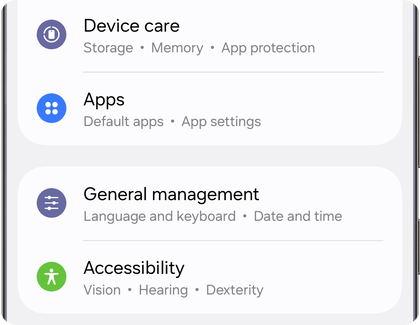
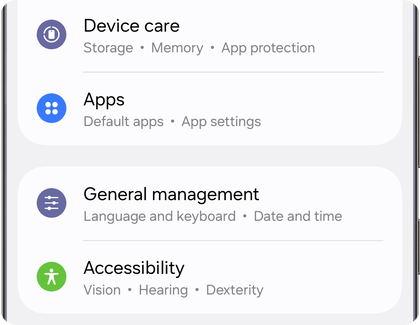
Step 1. Open the Settings menu. Then, scroll through the menu and tap Apps.
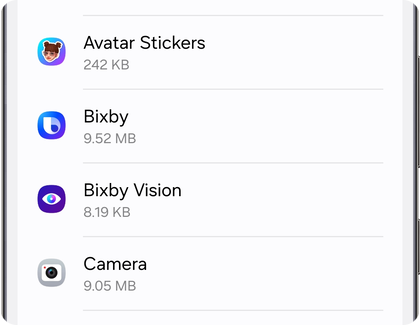
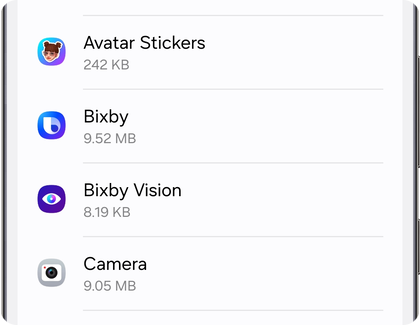
Step 2. Scroll through the list and select the app whose cache you want to clear.
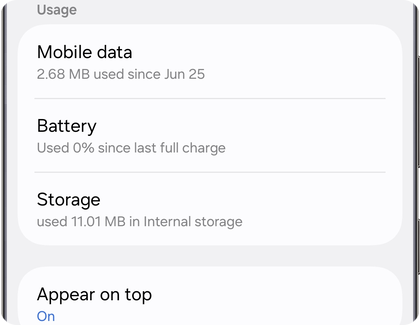
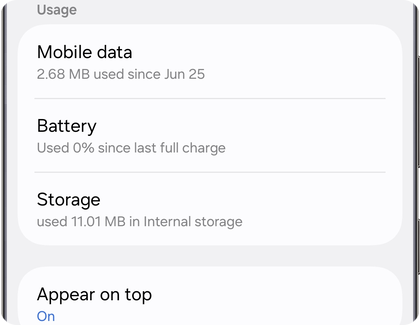
Step 3. Tap Storage.
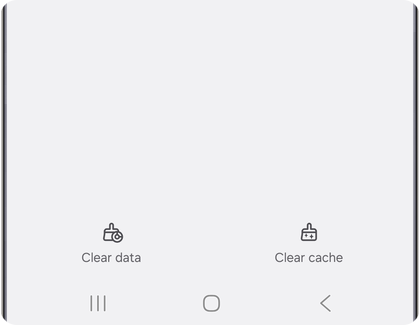
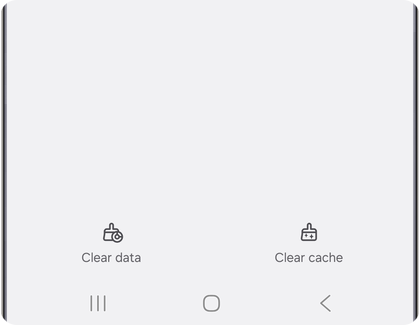
Step 4. Tap Clear cache in the bottom right corner of the screen.
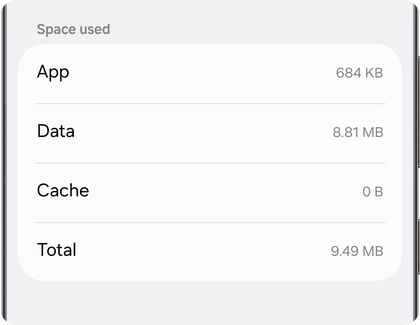
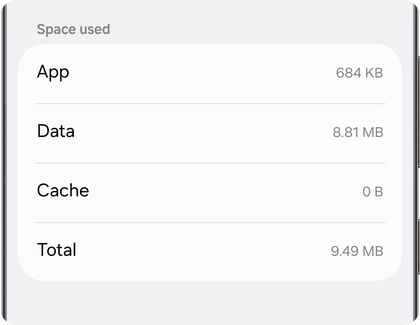
Step 5. To confirm that the cache was cleared, check the Cache entry in the Space used list on the same screen. It should now display 0 B.


Note: If you need to clear the cache or data for multiple apps at once, please refer to the relevant section later in this article.
Clearing app data resets an app to its original state. This can help resolve persistent issues, but it will also remove all personal settings and information stored within the app. Before proceeding, make sure you know any usernames, passwords or account details required to sign in again.
Important: Clearing the data will reset the app to its factory default settings. All personal settings and data saved within the app will be permanently removed.
Step 1. Open the Settings menu. Then, scroll through the menu and tap Apps.
Step 2. Scroll through the list and select the app whose data you want to clear.
Step 3. Tap Storage.
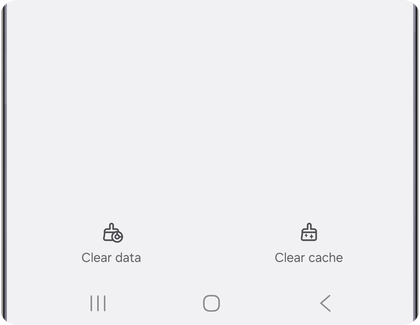
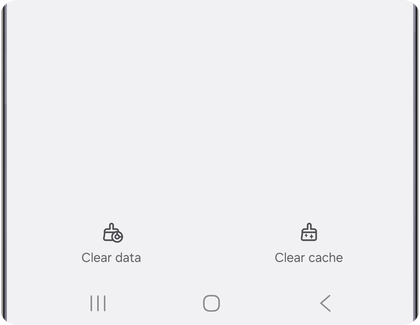
Step 4. Tap Clear data in the bottom left corner of the screen.
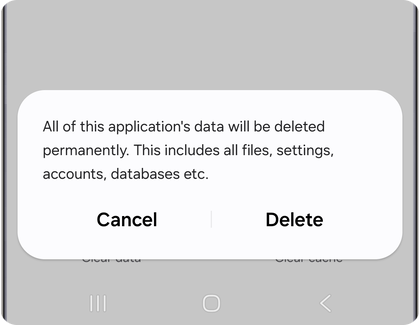
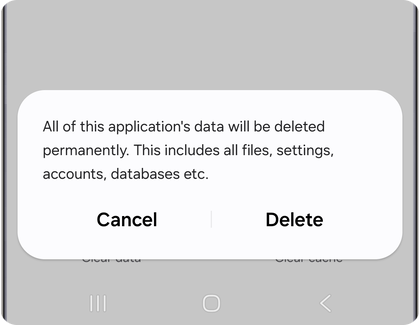
Step 5. Tap Delete to confirm.
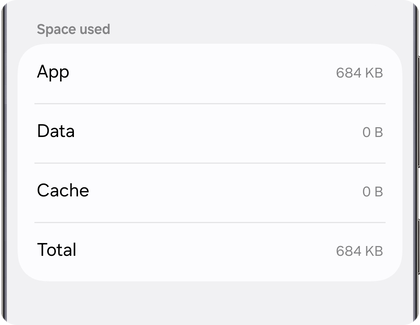
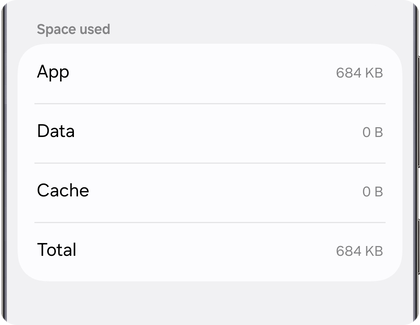
Step 6. To confirm that the data was cleared, check the Data and Cache entries in the Space used list on the same screen. They should now display 0 B.
Note:
- Some system apps may not allow their data to be cleared.
- If you need to clear the cache or data for multiple apps, please refer to the next section of this article.
It is possible to clear the cache and data for all apps at once by performing a factory reset. However, this is a drastic step that should only be used in extreme cases. A factory reset will erase all data from your Samsung Galaxy, including apps, settings and personal files. Always back up your personal data before performing a factory reset to avoid losing important information.
Important: If you’re using an encrypted microSD card, make sure to decrypt it before performing a factory reset. Otherwise, your device may not be able to access the data afterward. To decrypt the card, go to Settings, search for Decrypt SD card, and follow the on-screen instructions.
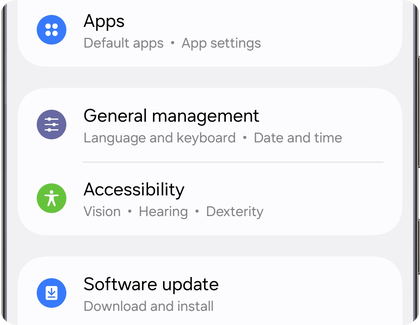
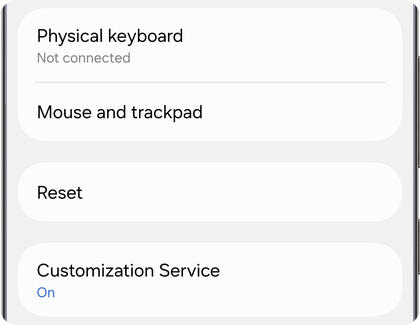
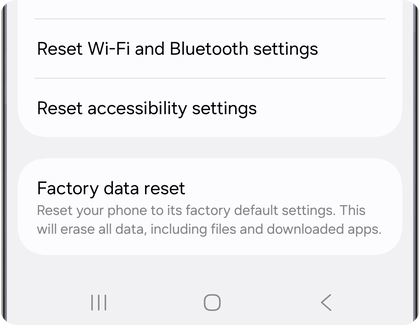

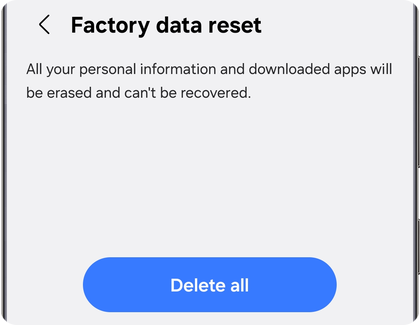
Note: If you are unable to reset your device or complete the initial setup due to account credentials stored on the device, please contact us for assistance.
Update apps
Keeping your apps up to date helps improve performance, stability and security. If you downloaded an app from the Google Play Store, you can use the Play Store app to install available updates individually or all at once.
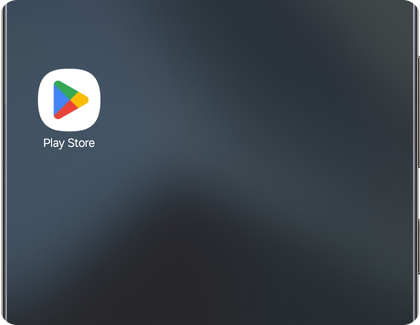
Step 1. Open the Play Store app.
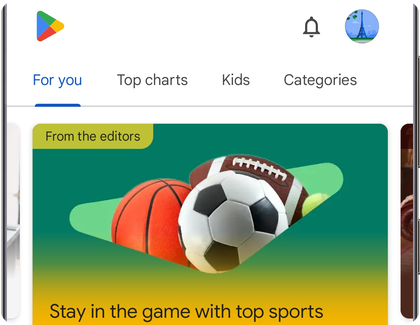
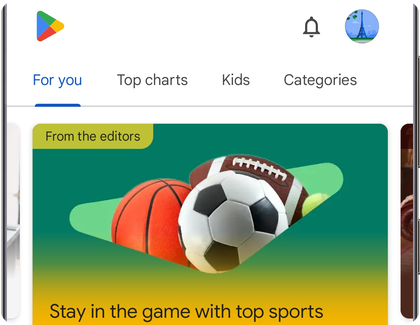
Step 2. Tap your Profile icon (the circular icon in the top right corner).
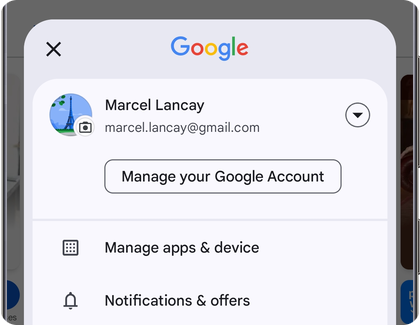
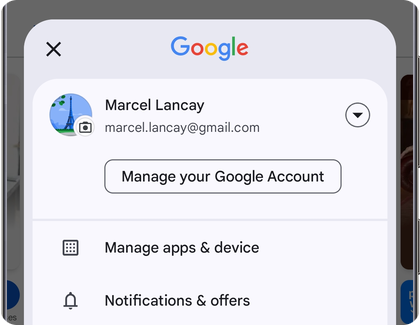
Step 3. Tap Manage apps & device.


Step 4. Tap Updates available or See details to view pending app updates.
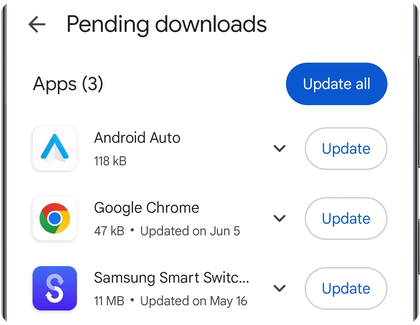
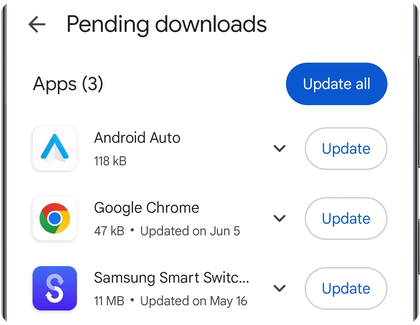
Step 5. Tap Update next to an individual app to update only that app.
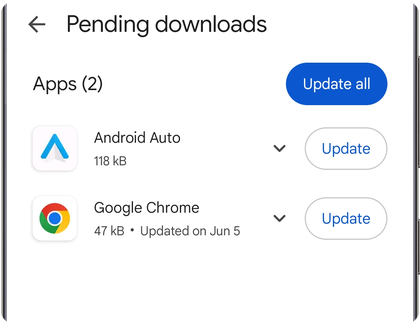
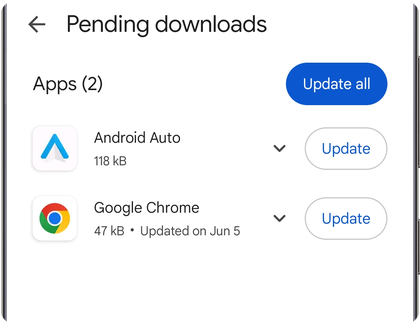
Step 6. Tap Update all to install all available app updates.
Note: A Google account is required to access the Google Play Store.
Keeping your apps up to date helps improve performance, stability and security. If you downloaded an app from the Galaxy Store, you can use the Galaxy Store app to install available updates individually or all at once.
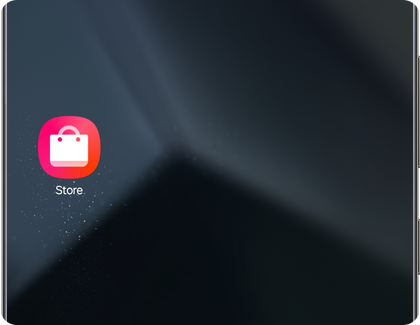
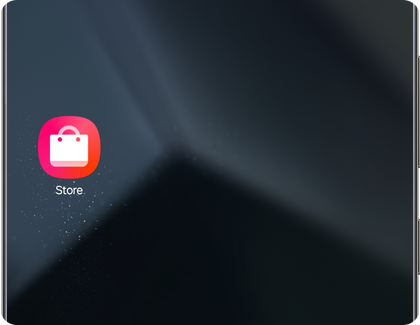
Step 1. Open the Galaxy Store app.
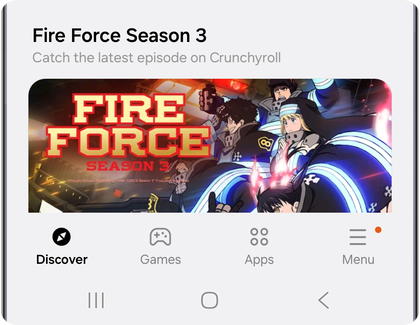
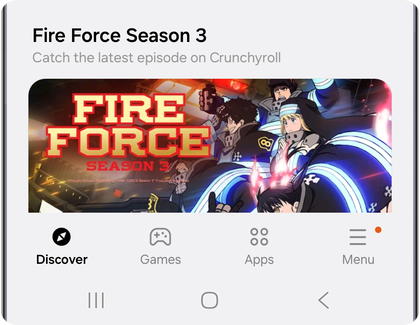
Step 2. Tap Menu in the bottom right corner of the screen.


Step 3. Tap Updates to view pending app updates.
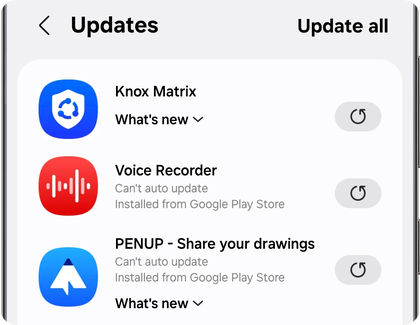
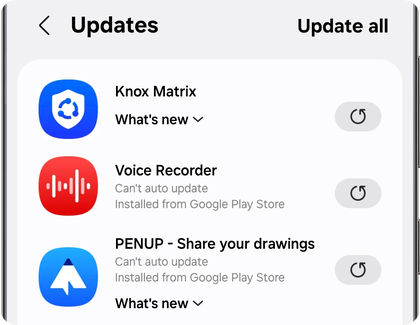
Step 4. Tap the Update icon next to an individual app to update only that app.
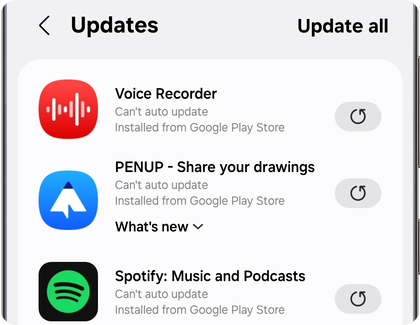
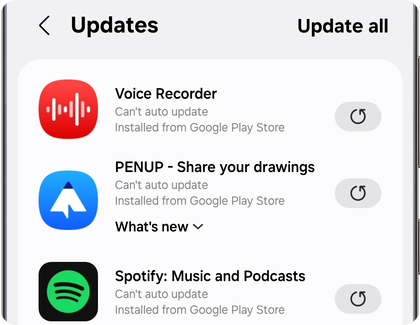
Step 5. Tap Update all in the top right corner to install all available app updates.


Note: A Samsung account is required to access the Galaxy Store.
Automatic updates help keep your Play Store apps up to date without requiring manual updates. Once enabled, the Play Store can install available app updates automatically in the background based on your selected preferences.
Step 1. Open the Play Store app.
Step 2. Tap your Profile icon (the circular icon in the top right corner).
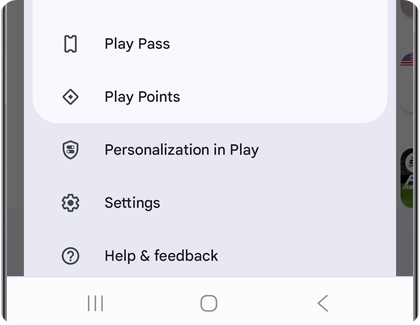
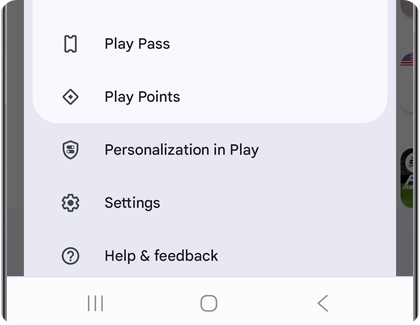
Step 3. Tap Settings at the bottom of the list.
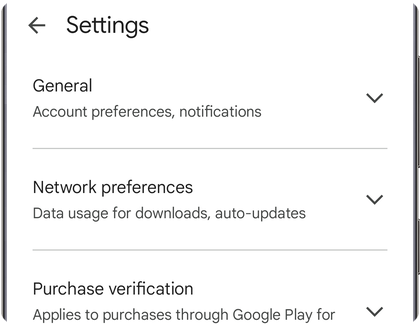
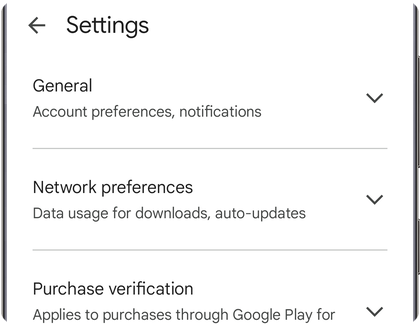
Step 4. Tap Network preferences.
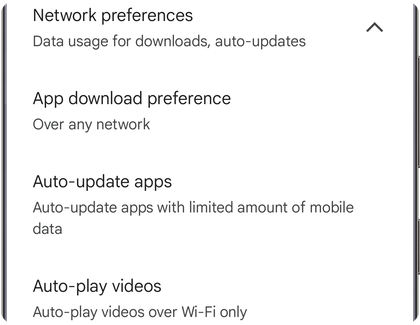
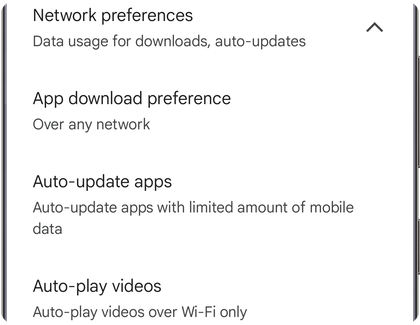
Step 5. Tap Auto-update apps.


Step 6. Select your preferred option. We recommend choosing Update over Wi-Fi only to save mobile data.
Note:
- We recommend updating apps over Wi-Fi instead of mobile data whenever possible. App updates can be large and may use a significant portion of your data plan or result in additional charges.
- App updates may not install immediately. Your Samsung Galaxy will wait for the right moment, such as when it is connected to Wi-Fi, charging or not actively being used, to update apps in the background without interrupting you.
Automatic updates help keep your Galaxy Store apps up to date without requiring manual updates. Once enabled, the Galaxy Store can install available app updates automatically based on your selected preferences.
Step 1. Open the Galaxy Store app.
Step 2. Tap Menu in the bottom right corner of the screen.
Step 3. Tap the Settings icon (the gear-shaped icon) in the top right corner of the screen.
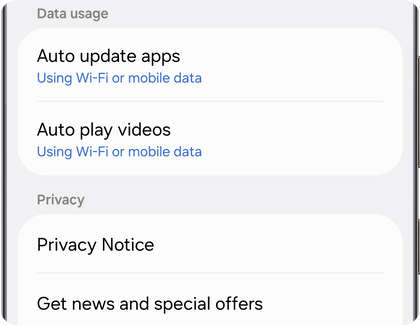
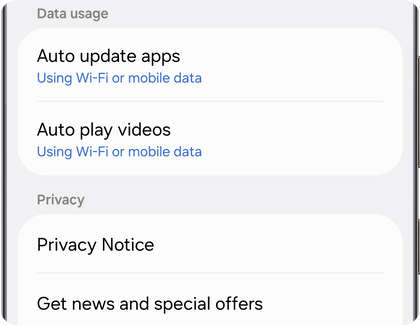
Step 4. Tap Auto update apps.
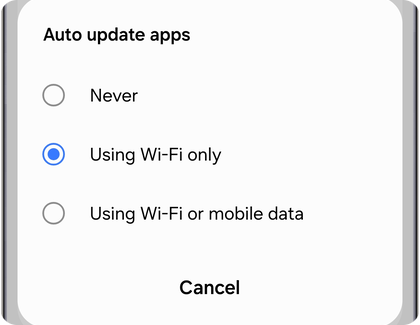
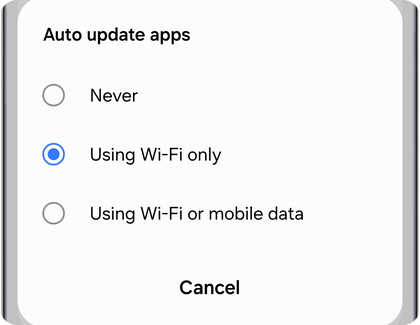
Step 5. Select your preferred option. We recommend choosing Using Wi-Fi only to save mobile data.
Note:
- We recommend updating apps over Wi-Fi instead of mobile data whenever possible. App updates can be large and may use a significant portion of your data plan or result in additional charges.
- App updates may not install immediately. Your Samsung Galaxy will wait for the right moment, such as when it is connected to Wi-Fi, charging or not actively being used, to update apps in the background without interrupting you.
Some apps can be returned to the version that was originally installed on your Samsung Galaxy by uninstalling their updates. This can be useful if an app update is causing unexpected issues.
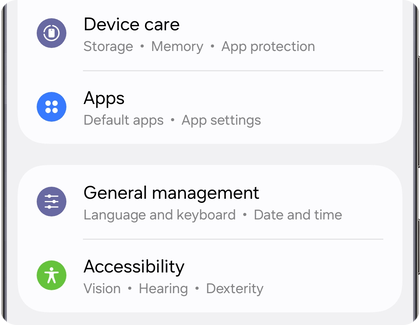
Step 1. Open the Settings menu. Then, scroll through the available options and tap Apps.


Step 2. Scroll through the list and tap the app you want to manage.
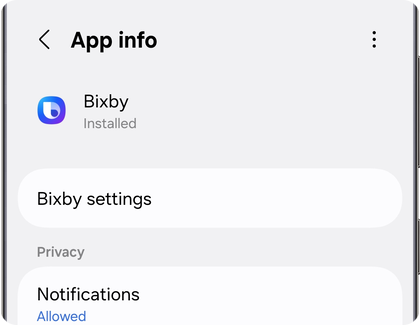
Step 3. Tap the More options icon (three vertical dots in the top right corner).
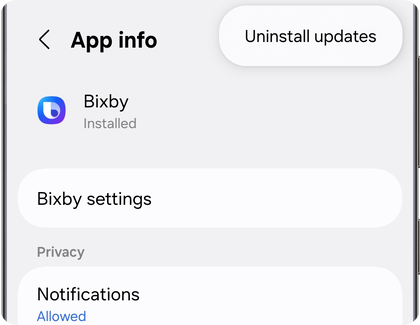
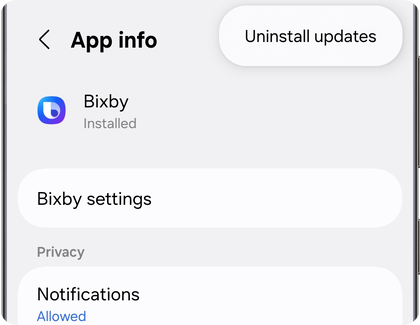
Step 4. Tap Uninstall updates.
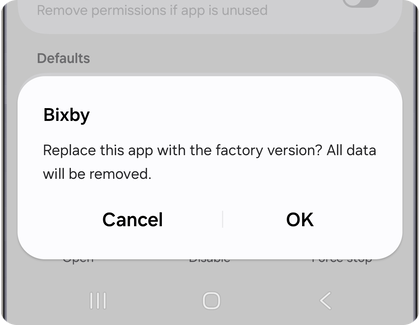
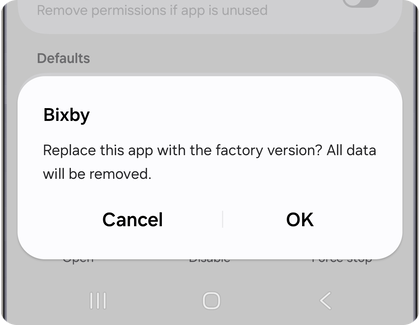
Step 5. Tap OK at the bottom of the screen to confirm your choice.
Note:
- Only certain apps allow this action, typically Samsung apps that come preinstalled on your device.
- This option is generally used for troubleshooting purposes. Most users will not need to uninstall app updates unless they are trying to resolve an issue caused by a recent update.
Uninstall or disable apps
When you no longer need an app, you may have the option to uninstall or disable it. While both actions remove the app from everyday use, they do not have the same effect.
- Uninstalling removes the app from your Samsung Galaxy and frees up storage space. This option is typically available for apps that you downloaded yourself.
- Disabling prevents an app from running and removes it from the Apps screen, but the app remains installed on the device. This option is typically available for certain preloaded apps that cannot be uninstalled.
The following sections explain how to uninstall downloaded apps and disable preloaded apps.
Note:
- Certain preloaded apps can only be disabled because they are integrated with features and services available on your Samsung Galaxy. Disabling the app removes it from everyday use while helping ensure that related device features continue to function properly.
- Some apps cannot be uninstalled or disabled because they are required for your Samsung Galaxy to operate properly.
- If you disable an app, you can enable it again later by opening the Settings menu, tapping Apps, selecting the app, and then tapping Enable.
If you no longer need an app that you downloaded, you can uninstall it to remove it from your Samsung Galaxy and free up storage space.
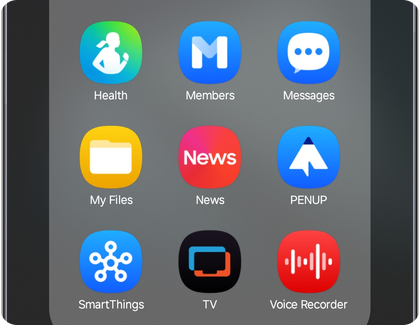
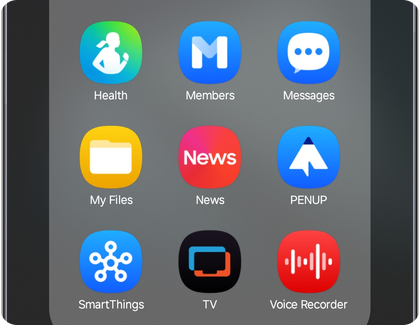
Step 1. Find the app you want to uninstall, then touch and hold its shortcut for a few seconds.
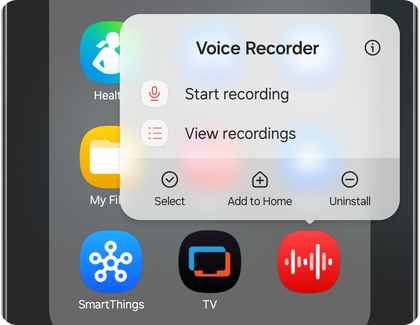
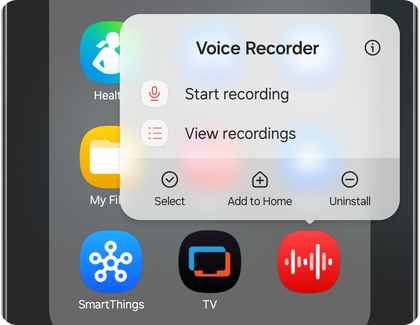
Step 2. Tap Uninstall.
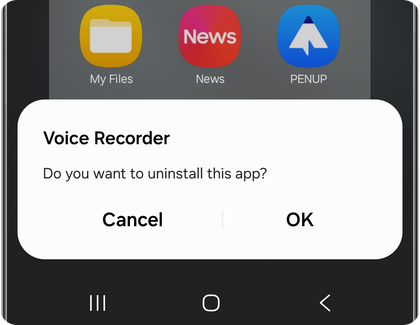
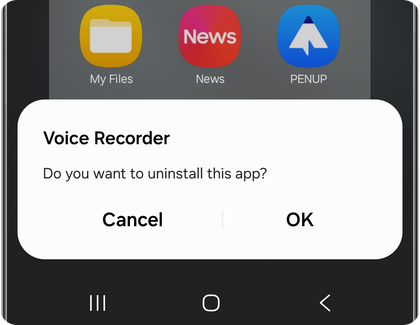
Step 3. Tap OK to confirm.
Note:
- Uninstalling an app removes it from your Samsung Galaxy. If you reinstall the app later using the Play Store or Galaxy Store, you may need to sign in again or reconfigure its settings.
- Some preloaded apps cannot be uninstalled. If available, you may be able to disable the app instead.
Some preloaded apps cannot be uninstalled from your Samsung Galaxy. In these cases, you may be able to disable the app instead. Disabling an app prevents it from running and removes it from the Apps screen, helping reduce clutter while keeping the files required by the device available if needed.


Step 1. Find the app you want to disable, then touch and hold its shortcut for a few seconds.


Step 2. Tap Disable.


Step 3. Tap Disable again to confirm.
Note:
- Certain preloaded apps can only be disabled because they are integrated with features and services available on your Samsung Galaxy. Disabling the app removes it from everyday use while helping ensure that related device features continue to function properly.
- Some apps cannot be uninstalled or disabled because they are required for your Samsung Galaxy to operate properly.
- If you disable an app, you can enable it again later by opening the Settings menu, tapping Apps, selecting the app, and then tapping Enable.
Additional resources

Thank you for your feedback!
Please answer all questions.
RC01_Static Content : Hide call number function