Why does my Samsung TV screen darken with a PC?
If your Samsung TV screen appears too dark when connected to a PC, it's often due to HDR settings, input signal configurations, or TV brightness adjustments. Follow these steps to resolve the issue effectively.
1. Why does my Samsung TV screen go dark when connected to a PC?
The darkness issue typically occurs because the TV interprets SDR (Standard Dynamic Range) content from your PC as HDR (High Dynamic Range), causing incorrect brightness levels. This mismatch can be resolved by adjusting Windows HDR settings, enabling Input Signal Plus, or optimizing TV brightness.
2. How to fix a dark Samsung TV screen when connected to a PC?
2.1 Adjust Windows HDR Settings
Windows HDR settings can affect how your TV displays SDR content. Follow these steps:
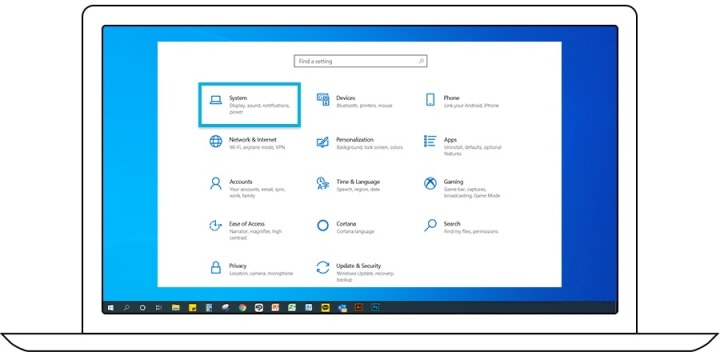
- Click the Windows Start button and select Settings.
- Go to System > Display.
- If multiple displays are connected, select your TV under Rearrange your displays.
- Click Windows HD Colour settings.
- Under SDR content appearance, adjust the slider to balance brightness between HDR and SDR content.
2.2 Enable Input Signal Plus on Your Samsung TV
Input Signal Plus ensures your TV correctly processes the PC's signal. Here's how to enable it:
- Navigate to Settings on your TV.
- Select General > External Device Manager.
- Choose Input Signal Plus.
- Turn on the HDMI port connected to your PC.
- Note: On 2018 and older models, this setting is called HDMI UHD Colour.
2.3 Optimize TV Brightness Settings
Adjusting your TV's brightness can improve visibility. Follow these steps:
- Go to Settings on your TV.
- Select Picture > Expert Settings.
- Choose Brightness and increase it to your preference.
3. Additional Things to Check
- Ensure your PC's graphics card drivers are up to date.
- Verify your TV supports the resolution and refresh rate of your PC.
- Test with a different HDMI cable to rule out connectivity issues.
4. Supported Samsung TV Models
This solution applies to most Samsung TVs released in 2018 and later, including QLED, Neo QLED, and MicroLED series. Refer to your user manual for model-specific details.
5. Related Samsung Support Topics
Thank you for your feedback!
Please answer all questions.