Why Your TV Isn't Detecting External Devices
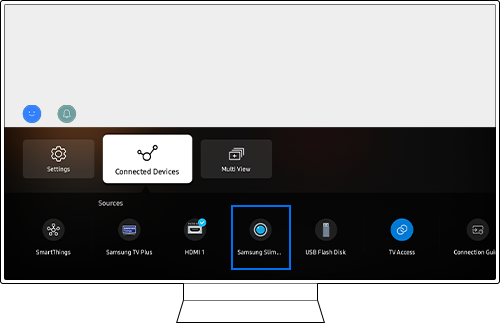
If your Samsung TV fails to detect an external device such as an Xbox, PlayStation, Blu-ray player, or cable box, the issue is often related to HDMI connectivity. This guide provides step-by-step solutions to resolve HDMI detection problems, including checking device power, reconnecting cables, switching ports, and verifying source settings.
1. Why is my Samsung TV not detecting my external device?
Samsung TVs may fail to detect external devices due to several common issues:
- The external device is not powered on.
- The HDMI cable is loose, damaged, or incompatible.
- The TV's input source is not set to the correct HDMI port.
- The HDMI port on the TV is faulty.
- The external device or HDMI cable is incompatible with the TV's HDMI standards.
2. How to fix HDMI detection issues on Samsung TVs
- Ensure the external device is powered on. If it does not turn on, contact the device manufacturer for assistance.
- Check the TV's input source setting. Press the Source button on the remote and select the HDMI port where the device is connected (e.g., HDMI 1, HDMI 2).
- Disconnect the HDMI cable from both the TV and the external device. Reconnect the cable firmly, ensuring it is fully inserted into both ends.
- If the device still does not appear, switch the HDMI cable to a different HDMI port on the TV. Remember to change the TV's input source to match the new port.
- Test the HDMI cable by connecting it to another device or TV. If the cable works elsewhere, the issue may lie with the original device or TV port.
- Try a different HDMI cable. If the new cable works, the original cable may be damaged or incompatible.
3. What if the issue persists after troubleshooting?
If none of the above steps resolve the issue, consider the following:
- The external device may be malfunctioning. Test it on another TV or monitor to confirm.
- The HDMI port on the TV may be faulty. If other devices and cables do not work on the same port, the port may require repair.
- The TV itself may need servicing. Contact Samsung Support for further assistance.
4. Supported Samsung TV models
This troubleshooting guide applies to most Samsung TV models, including QLED, Neo QLED, and Crystal UHD TVs manufactured from 2017 onwards. Refer to your user manual for model-specific details.
5. Related Samsung support topics
Thank you for your feedback!
Please answer all questions.