How to pair a soundbar with a Samsung TV
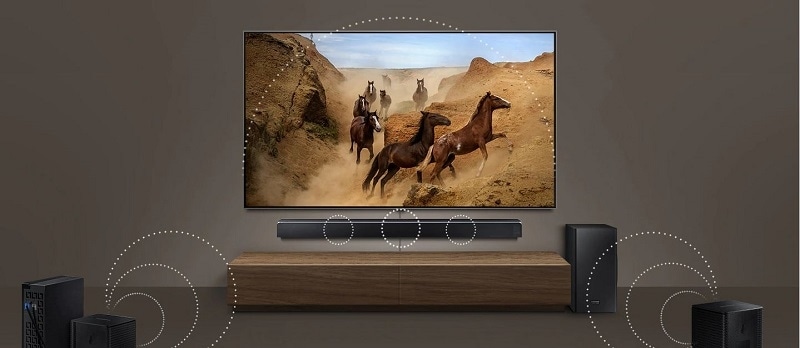
How to Connect a Soundbar to a Samsung TV?
To connect a soundbar to a Samsung TV, use HDMI ARC/eARC for the best audio quality, or try optical, Bluetooth, or Wi-Fi methods for convenience. Follow these steps for seamless setup.
1. Why Connect a Soundbar to a Samsung TV?
A soundbar enhances your TV's audio experience by delivering clearer, richer sound. Samsung TVs support multiple connection methods, including HDMI ARC/eARC, optical, Bluetooth, and Wi-Fi, ensuring compatibility with various soundbar models.
2. Supported Samsung Galaxy Devices
This guide applies to Samsung TVs and soundbars, including models from the Galaxy series, Q series, and others. Check your device's user manual for specific compatibility details.
3. How to Connect a Soundbar Using HDMI ARC/eARC
HDMI ARC (Audio Return Channel) and eARC (Enhanced Audio Return Channel) provide high-quality audio transmission between your TV and soundbar.
- Connect one end of the HDMI cable to the HDMI ARC/eARC port on your TV.
- Connect the other end to the HDMI OUT port on your soundbar.
- Turn on your TV and soundbar, then select the correct HDMI input on the soundbar.
- Enable Anynet+ (HDMI-CEC) on your TV for automatic power synchronization.
- Use a High-Speed HDMI cable with Ethernet for optimal performance.
4. How to Connect a Soundbar and External Device Using HDMI
For external devices like gaming consoles or Blu-ray players, connect them directly to the soundbar and then link the soundbar to the TV via HDMI ARC/eARC.
- Connect the external device to the HDMI IN port on your soundbar.
- Link the soundbar to the TV using HDMI ARC/eARC as described above.
- Ensure your soundbar supports 4K pass-through if your external device is 4K compatible.
5. How to Connect a Soundbar Using an Optical Cable
Optical cables (Tos-Link) transmit digital audio from your TV to the soundbar.
- Connect the optical cable to the Optical OUT port on your TV.
- Plug the other end into the Optical IN port on your soundbar.
- Turn on your TV and soundbar, then select the optical input on the soundbar.
- For Samsung TVs released in 2022 and later, enable Simultaneous Optical Output in the Sound settings.
6. How to Connect a Soundbar Using Bluetooth
Bluetooth offers a wireless connection but may have lower audio quality compared to HDMI or optical.
- Turn on your soundbar and ensure it's in pairing mode (look for "BT PAIRING" on the display).
- On your Samsung TV, go to Settings > Sound > Bluetooth Speaker List.
- Select your soundbar from the list and confirm the pairing.
- If "BT READY" appears, the soundbar is already paired with another device. Press the Mic On/Off or Source button to reset pairing.
7. How to Connect a Soundbar Using Wi-Fi
Wi-Fi connectivity is exclusive to Samsung TVs and soundbars.
- Ensure both your TV and soundbar are connected to the same Wi-Fi network.
- Open the SmartThings app on your mobile device.
- Follow the on-screen instructions to pair the devices.
- If your Wi-Fi router uses a DFS channel, Wi-Fi connection may not work. Contact your ISP for assistance.
8. Additional Things to Check
- Ensure your TV and soundbar firmware are up to date.
- Verify that the HDMI ARC/eARC port on your TV supports the required audio formats.
- If you encounter issues, reset both devices and retry the connection process.
Related Samsung Support Topics
Thank you for your feedback!
Please answer all questions.