How to fix GPS issues on a Samsung device
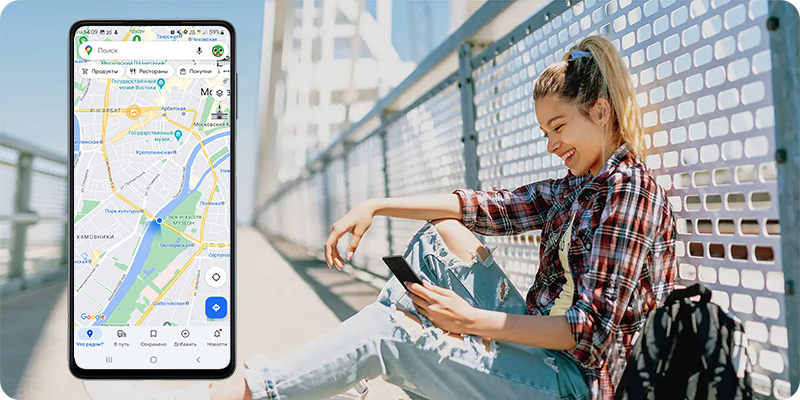
Why is GPS not working properly on my Samsung Galaxy device?
If your Samsung Galaxy device is showing inaccurate GPS locations, taking too long to detect your position, or failing to locate you entirely, it could be due to incorrect settings, outdated apps, or environmental factors. Follow these steps to resolve GPS issues and improve location accuracy on your Samsung Galaxy phone or tablet.
1. Why is GPS not working properly on my Samsung Galaxy device?
GPS issues on Samsung Galaxy devices often stem from software settings, app permissions, or environmental factors. Common causes include:
- Location services being turned off or set to low accuracy.
- Outdated apps or operating system versions affecting GPS functionality.
- Incorrect app permissions restricting access to location data.
- Environmental factors such as indoor use, poor weather, or physical obstructions blocking GPS signals.
- Wi-Fi or Bluetooth scanning features disabled, reducing location accuracy.
2. How to improve GPS accuracy on Samsung Galaxy devices
Follow these steps to optimize GPS performance on your Samsung Galaxy device:
- Enable Location Services: Go to Settings > Location > Location services and ensure it is turned on.
- Set Location Accuracy to High: Navigate to Settings > Location > Location Accuracy and toggle on Improve Location Accuracy.
-
Enable Wi-Fi and Bluetooth Scanning:
- Wi-Fi Scanning: Allows apps to use nearby Wi-Fi networks for better location detection, even when Wi-Fi is off.
- Bluetooth Scanning: Enables apps to use Bluetooth signals for improved location accuracy, even when Bluetooth is off.
- Move Outdoors: GPS works best with a clear view of the sky. Move to an open outdoor area to improve signal reception.
- Restart GPS: Turn off the Location icon in the Quick Panel, wait a few seconds, and turn it back on. Open Google Maps or another navigation app to test accuracy.
3. Additional things to check
If GPS issues persist, consider these additional troubleshooting steps:
-
Check App Permissions:
- Starting with Android 10, apps require explicit permission to access location data. Ensure the app has "Allow all the time" permissions.
Steps: Settings > Location > App Permissions > Select the app > Allow all the time.
- Update Apps: Outdated navigation or map apps can cause GPS issues. Update the app via the Galaxy Store or Google Play Store.
- Try Another Navigation App: Test GPS functionality with a different app like Google Maps or Samsung Internet. If the issue persists across apps, the problem may lie with the device settings.
- Use Wi-Fi for Faster Location Detection: When traveling overseas without data roaming, connect to Wi-Fi to receive auxiliary satellite data and speed up location acquisition.
4. Supported Samsung Galaxy devices
These troubleshooting steps apply to most Samsung Galaxy devices, including the Galaxy S24, Galaxy S25, Galaxy S26, Galaxy Z Fold, Galaxy Z Flip, and Galaxy A series.
5. When GPS may not work as expected
GPS performance can be affected by various factors, including:
- Indoor environments with limited satellite visibility.
- Physical obstructions like tall buildings, dense forests, or underground parking.
- Poor weather conditions such as heavy rain or cloud cover.
- Incorrect Wi-Fi or cellular tower data on Google servers.
6. Related Samsung support topics
Thank you for your feedback!
Please answer all questions.