How to get the best audio quality on Galaxy Buds2
How to Fix Poor Audio Quality on Samsung Galaxy Buds2
Poor audio quality on your Samsung Galaxy Buds2 can stem from improper fit, earwax buildup, outdated software, or network interference. Follow these expert tips to restore optimal sound performance.
1. Why is my Samsung Galaxy Buds2 audio quality poor?
- Incorrect fit: Earbuds not seated properly in the ears can lead to reduced bass and noise cancellation.
- Debris buildup: Earwax or dust clogging the speakers can degrade sound clarity.
- Outdated software: Unpatched firmware may cause compatibility issues with connected devices.
- Network interference: Obstacles or electromagnetic waves can disrupt Bluetooth signals.
- Low battery: Insufficient power can affect audio output quality.
2. How do I wear my Galaxy Buds2 correctly for better sound?
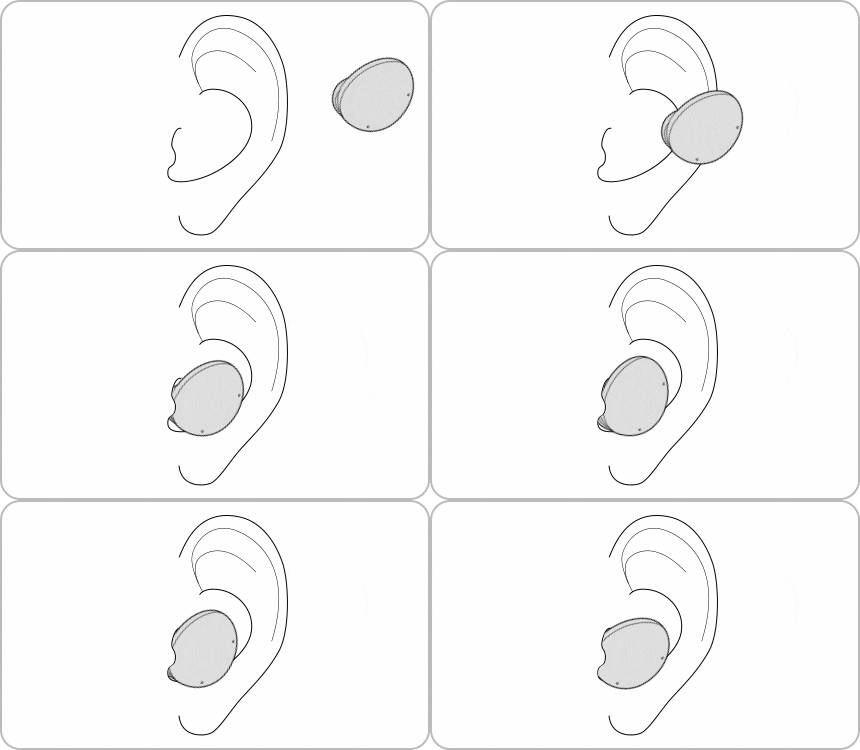
Proper earbud placement ensures optimal sound quality and active noise cancellation. Follow these steps:
- Check the L and R labels on each earbud and insert them into the corresponding ears.
- Use the Galaxy Wearable app to perform the earbud fit test. This feature analyzes your ear shape and suggests adjustments.
- Try different ear tip sizes to achieve a snug fit. A secure seal enhances bass response and reduces external noise.
If the sound remains subpar, adjust the earbuds slightly or switch to larger ear tips for improved comfort and acoustics.
3. How do I clean my Galaxy Buds2 to improve audio quality?
Accumulated earwax or debris can muffle sound. Clean your earbuds regularly using these steps:
- Remove the ear tips from the earbuds by gently pulling them off the latch at the base.
- Use a soft, dry brush or cotton swab to carefully remove debris from the speaker grille and air duct.
- Wipe the earbuds with a clean, dry microfiber cloth to remove surface dirt.
- Avoid using sharp objects or excessive force, as this may damage the speaker or microphone holes.
Regular maintenance prevents long-term buildup and maintains consistent audio performance.
4. How do I update software for better Galaxy Buds2 audio quality?
Outdated software can cause compatibility issues. Ensure your Galaxy Buds2, mobile device, and Galaxy Wearable app are updated:
Update Mobile Device Software
- Open Settings on your phone.
- Go to Software Update and tap Download and Install.
- Follow the on-screen instructions to complete the update.
Update Galaxy Buds2 Software
- Launch the Galaxy Wearable app on your phone.
- Tap Earbuds Settings and select Earbuds Software Update.
- Tap Update to install the latest firmware.
Keeping all software components updated ensures optimal performance and compatibility with your Samsung Galaxy device.
5. How do I optimize Bluetooth connections for better audio quality?
Network interference can degrade audio quality. Follow these tips to maintain a stable connection:
- Keep your earbuds and connected device within 10 meters (33 feet) of each other.
- Avoid placing obstacles like walls or furniture between the devices.
- Minimize exposure to electromagnetic waves from microwaves, routers, or other electronic devices.
- Disconnect and reconnect the Bluetooth connection if audio quality deteriorates.
6. Supported Samsung Galaxy Devices
The Galaxy Buds2 are compatible with most Samsung Galaxy smartphones and tablets, including the Galaxy S24, Galaxy S25, Galaxy Z Fold, Galaxy Z Flip, and Galaxy A series. Ensure your device runs the latest software version for optimal performance.
7. Additional Things to Check
- Adjust the volume on your connected device to an appropriate level.
- Verify that the Galaxy Wearable app is installed and functioning correctly.
- Test audio quality with different media sources to rule out app-specific issues.
Related Samsung Support Topics

Thank you for your feedback!
Please answer all questions.