How to extend the battery life of a Samsung smartwatch
How to extend battery life on Samsung Galaxy Watch?
Extending the battery life of your Samsung Galaxy Watch involves adjusting display settings, managing app usage, and enabling power-saving modes. These steps help reduce unnecessary energy consumption and maximize standby time.
1. Why does my Samsung Galaxy Watch drain quickly?
Several factors can cause rapid battery drain on your Samsung Galaxy Watch:
- High screen brightness or Always On Display usage
- Background activity from unused apps
- Active Wi-Fi or Bluetooth connections when not needed
- Frequent notifications or location services
- Outdated software or apps
2. How do I update my Samsung Galaxy Watch software?
Keeping your device updated ensures optimal performance and battery efficiency. Follow these steps to update your Galaxy Watch:
- Open the Settings app on your watch.
- Scroll down and select Software Update.
- Tap Download and Install to begin the update process.
- Follow the on-screen instructions to complete the installation.
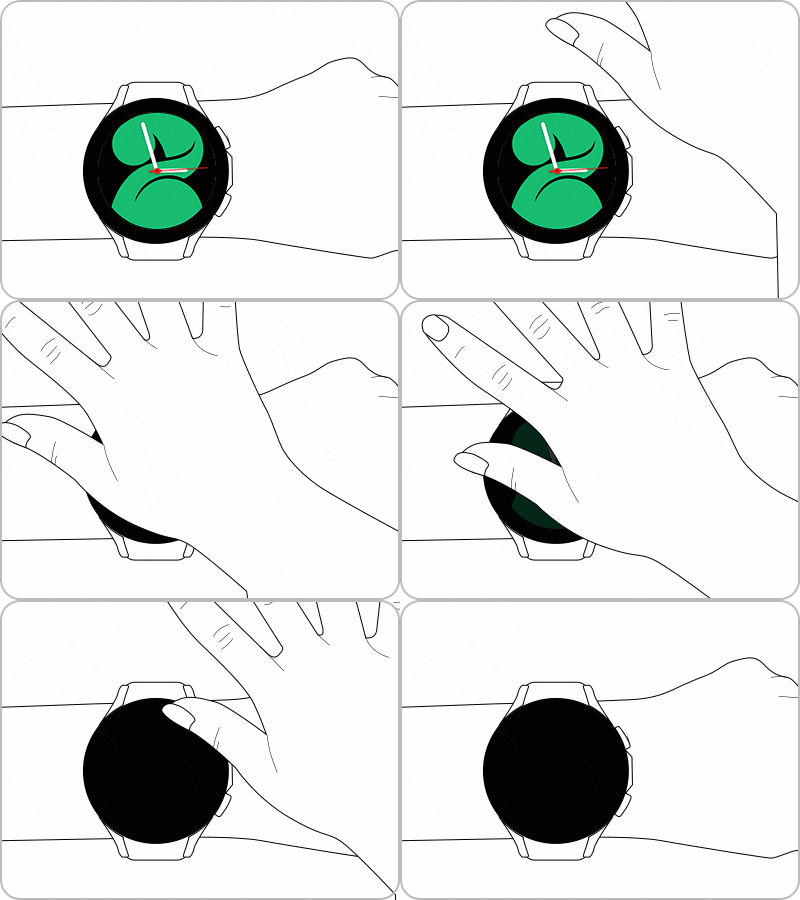
3. How can I turn off my Samsung Galaxy Watch display to save battery?
Putting your watch into sleep mode when not in use helps conserve battery life. Here's how:
- Cover the watch screen with your palm once to activate sleep mode.
4. How do I enable Power Saving Mode on my Samsung Galaxy Watch?
Activating Power Saving Mode reduces battery consumption by limiting certain features. Follow these steps:
- Swipe down from the top of the screen to open the Quick Panel.
- Tap the Power Saving icon to enable the mode.
- To disable Power Saving Mode, tap the icon again.
When enabled, Power Saving Mode automatically adjusts settings such as:
- Turning off Always On Display
- Disabling Wi-Fi
- Limiting processor speed
- Reducing screen brightness by 10%
- Restricting background network usage and location services
- Setting screen timeout to 15 seconds
- Disabling wake-up gestures
5. How do I close unused apps on my Samsung Galaxy Watch?
Closing unnecessary apps can significantly improve battery life. Follow these steps:
- Swipe up from the bottom of the watch screen to open the Apps screen.
- Tap Recent Apps to view all open apps.
- Drag each app window upward or tap the Close All icon on the left to close all apps at once.
6. How do I disable Wi-Fi on my Samsung Galaxy Watch?
Turning off Wi-Fi when not in use prevents unnecessary battery drain. Follow these steps:
- Swipe down from the top of the screen to open the Quick Panel.
- Tap the Wi-Fi icon to toggle it off.
7. How do I reduce screen brightness on my Samsung Galaxy Watch?
Lowering screen brightness helps conserve battery life. Here's how:
- Swipe down from the top of the screen to open the Quick Panel.
- Tap the Brightness icon.
- Adjust the brightness using the control wheel.
8. How do I turn off Always On Display on my Samsung Galaxy Watch?
Disabling Always On Display can extend battery life. Follow these steps:
- Open the Settings app on your watch.
- Select Display.
- Tap the switch next to Always On Display to turn it off.
Note: Screenshots and menu layouts may vary depending on your device model and software version.
9. Supported Samsung Galaxy Watch Devices
These tips apply to the following Samsung Galaxy Watch models: Galaxy Watch, Galaxy Watch Active, Galaxy Watch 3, Galaxy Watch 4, Galaxy Watch 5, Galaxy Watch 6, Galaxy Watch 7, Galaxy Watch 8, Galaxy Watch 9, Galaxy Watch 10, Galaxy Watch Ultra, and newer models.
10. Related Samsung Support Topics

Thank you for your feedback!
Please answer all questions.