Common questions about One UI 4.0
What is ONE UI 4.0 and how does it improve my Samsung Galaxy phone?
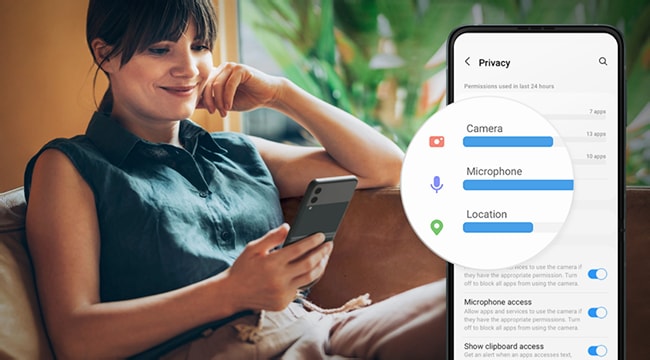
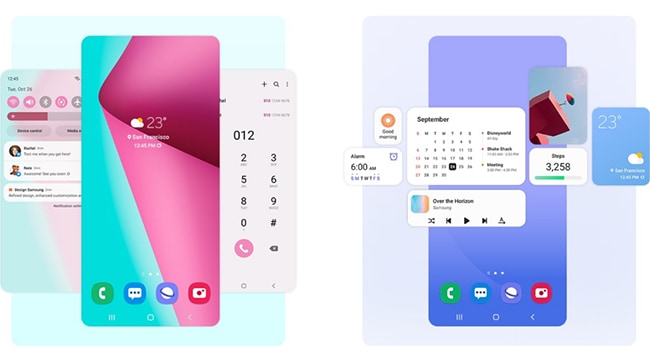
ONE UI 4.0 introduces significant improvements to your Samsung Galaxy phone, including enhanced privacy controls, redesigned notification menus, and better customization options. This update is designed to provide a more intuitive and secure user experience across compatible Galaxy devices.
1. What are the key features of ONE UI 4.0?
ONE UI 4.0 offers several new features and improvements:
- Enhanced privacy controls, including separate Location and Precise location permissions.
- Redesigned notification menus for Messages, improving user convenience.
- Microphone access indicators during calls, providing greater transparency.
- Customizable Always On Display settings, allowing users to control notification visibility.
2. How do I update my Samsung Galaxy device to ONE UI 4.0?
To ensure your device is running the latest software, follow these steps:
- Go to Settings.
- Select Software update.
- Tap on Download and install.
- Follow the on-screen instructions to complete the update.
Note: Ensure your device has sufficient storage space and a stable Wi-Fi connection before starting the update process.
3. Why are some notification menus different in ONE UI 4.0?
The Messages notification menus have been reorganized for better usability. You can now manage notifications through Notification categories, which include Foreground syncs, General notifications, and New messages.
4. What does the green microphone icon mean during a call?
The green microphone icon indicates that the Phone app has been granted Microphone access. This icon is not interactive and serves as a visual indicator of the app's permissions. To revoke access, go to Settings > Privacy and adjust the permissions accordingly.
5. How do I manage location permissions in ONE UI 4.0?
Starting with Android 12, location permissions are divided into Location and Precise location. To enable or disable these permissions:
- Open Settings.
- Navigate to Privacy.
- Select Location and choose the desired permission level.
6. Why don't I see Always On Display notifications?
If Always On Display notifications are not appearing, ensure the feature is enabled:
- Go to Settings > Notifications > Lock screen.
- Enable Always On Display.
- Ensure Show on Always On Display is turned on.
Disabling these settings will prevent notifications from appearing on the Always On Display.
7. Which Samsung Galaxy devices support ONE UI 4.0?
ONE UI 4.0 is supported on a range of Samsung Galaxy devices, including:
- Galaxy S24 series
- Galaxy S25 series
- Galaxy Z Fold series
- Galaxy Z Flip series
- Galaxy A series (select models)
8. Additional things to check
If you encounter issues with ONE UI 4.0, consider the following:
- Ensure your device's software and related apps are up to date.
- Check for sufficient storage space, as updates require available memory.
- Restart your device after the update to resolve any temporary glitches.
Related Samsung support topics

Thank you for your feedback!
Please answer all questions.