Why is my Galaxy phone showing a water drop icon?
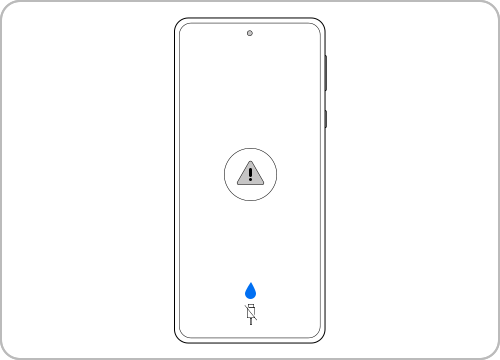
Why is my Samsung Galaxy phone showing a water drop icon and not charging?
If your Samsung Galaxy phone displays a water drop icon and refuses to charge, it means the device has detected moisture in the USB port. This safety feature prevents water damage and corrosion. Follow these steps to resolve the issue safely and effectively.
1. Why does the water drop icon appear on my Samsung Galaxy phone?
The water drop icon appears when your device detects moisture in the USB port or surrounding areas. This is a built-in safety mechanism to protect your phone from potential damage caused by water exposure.
- Devices with an IP68 or higher waterproof rating, such as the Galaxy S24, Galaxy Z Fold, and Galaxy A series, are equipped with moisture sensors.
- High humidity environments or accidental water exposure can trigger the sensor, even if the device hasn't been submerged.
- Charging is temporarily disabled until the moisture is fully evaporated to prevent electrical damage.
2. What should I do if my Samsung Galaxy phone shows a water drop icon?
- Unplug your device from the charger immediately.
- Gently wipe the USB port with a dry cloth or tissue.
- Shake your device gently (5–10 times) with the port facing downward to remove excess moisture.
- Place your phone on a dry cloth in a well-ventilated area or use a fan to speed up drying.
- Avoid using heat sources like hairdryers or ovens, as they can damage internal components.
3. Why does the water drop icon persist even after drying?
If the water drop icon remains after drying, it could indicate a residual moisture reading or a system error. Follow these steps to resolve the issue:
- Power off your device completely.
- Leave it to dry for at least 24 hours in a cool, dry environment.
-
Clear the USB cache to reset the system:
- Press and hold the Power button and tap Power off.
- Press and hold the Volume Down + Power buttons simultaneously until the Samsung logo appears.
- Use the Volume keys to navigate to Wipe cache partition and press the Power button to confirm.
- Select Reboot system now and wait for your device to restart.
4. When should I seek professional assistance?
If the water drop icon persists after following the above steps, or if your device still won't charge, contact Samsung Support for further assistance. Professional technicians can inspect the moisture sensor and charging components to ensure your device is safe to use.
5. Supported Samsung Galaxy devices
This troubleshooting guide applies to most Samsung Galaxy devices, including the Galaxy S24, Galaxy S25, Galaxy S26, Galaxy Z Fold, Galaxy Z Flip, and Galaxy A series.
Related Samsung support topics

Thank you for your feedback!
Please answer all questions.