How to fix unstable Bluetooth headset audio on a Galaxy phone
Why is my Samsung Galaxy Bluetooth headset audio unstable?
Unstable Bluetooth audio on your Samsung Galaxy device can result from poor connectivity, environmental interference, or outdated software. Follow these steps to resolve the issue and restore smooth audio performance.
1. Check for software updates
Outdated software can cause compatibility issues with Bluetooth devices. Ensure your Samsung Galaxy device runs the latest software version:
- Open Settings on your device.
- Select Software update.
- Tap Download and install.
- Follow the on-screen instructions to complete the update.
2. Reboot your device and Bluetooth headset
Restarting both devices can resolve temporary glitches affecting Bluetooth connectivity:
- Power off your Samsung Galaxy device and Bluetooth headset.
- Wait 30 seconds, then power both devices back on.
- Reconnect the headset to your device and test the audio.
3. Re-pair your Bluetooth headset
A faulty connection may cause unstable audio. Disconnect and reconnect your headset:
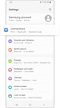
- Open Settings on your device.
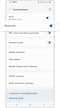
- Go to Connections > Bluetooth.
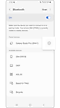
- Tap the three dots in the top-right corner and select Manage paired devices.
- Select your Bluetooth headset and tap Unpair.
- Turn on your headset and pair it again with your device.
4. Optimize your environment
Environmental factors can interfere with Bluetooth signals. Consider the following:
- Keep your Samsung Galaxy device and Bluetooth headset close together, avoiding physical obstructions.
- Avoid placing your device in pockets or bags, as this can weaken the signal.
- Move away from crowded areas or locations with heavy Wi-Fi usage.
- Stay away from electronic devices like microwaves, wireless speakers, or bare cables that may cause interference.
- If streaming music online, download tracks instead to reduce connection dependency.
5. Clear Bluetooth cache
Cached data can lead to connectivity issues. Clearing the Bluetooth cache may help:
- Open Settings on your device.
- Go to Apps > System apps > Bluetooth.
- Tap Storage > Clear cache.
6. Supported Samsung Galaxy devices
These troubleshooting steps apply to most Samsung Galaxy devices, including the Galaxy S24, Galaxy S25, Galaxy S26, Galaxy Z Fold, Galaxy Z Flip, and Galaxy A series. Always ensure your device is running the latest software version for optimal compatibility.
7. Additional things to check
If the issue persists, consider the following:
- Verify that your Bluetooth headset is fully charged and functioning correctly.
- Remove any metallic stickers or protective covers near the device's antenna, as these can interfere with Bluetooth signals.
- Test the headset with another device to rule out hardware issues.
8. When to visit a service center
If your Bluetooth headset continues to disconnect or produce unstable audio, visit the nearest Samsung service center for professional diagnosis and repair.
Related Samsung support topics




Thank you for your feedback!
Please answer all questions.