Why won't my Galaxy phone connect to Wi-Fi?
Why won't my Samsung Galaxy phone connect to Wi-Fi?
If your Samsung Galaxy phone isn't connecting to Wi-Fi, it could be due to router issues, incorrect network settings, app interference, or password problems. Follow these steps to diagnose and resolve the issue effectively.
1. Why is my Samsung Galaxy phone not detecting Wi-Fi networks?
If your phone can't find any Wi-Fi networks, the issue might stem from your router, phone settings, or network interference. Here's how to troubleshoot:
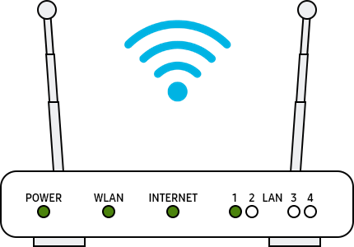
- Check your router: Ensure the router is powered on, connected to the internet, and within range of your phone. Too many devices connected to the router can also cause detection issues.
- Restart your phone, router, and modem: Turn off each device for 30 seconds, then power them back on.
- Connect in Safe Mode: If Wi-Fi works in Safe Mode, a third-party app may be causing the issue. Uninstall recently added apps one by one to identify the culprit.
- Router display varies: Contact your router provider for specific troubleshooting guidance.
2. What should I do if my Samsung Galaxy phone finds the Wi-Fi network but can't connect?
If your phone detects the network but fails to connect, follow these steps:
- Verify the password: Ensure the Wi-Fi password is entered correctly, as it is case-sensitive.
- Check for network congestion: Too many devices on the same network can slow down or block connections.
- Update your phone's software: Outdated software can cause compatibility issues with Wi-Fi networks.
- Test another device: If other devices also fail to connect, the issue may lie with the router or internet service provider.
3. How do I perform a factory data reset on my Samsung Galaxy phone?
If all else fails, resetting your phone to factory settings can resolve persistent Wi-Fi issues. Note that this will erase all personal data.
- Backup your data: Save important files to a cloud service or external storage.
- Access the reset menu: Go to Settings > General Management > Reset > Factory Data Reset.
- Confirm the reset: Tap "Delete All" to initiate the process.
- Irreversible action: Factory resets cannot be undone, so ensure all data is backed up.
4. Supported Samsung Galaxy devices
This guide applies to most Samsung Galaxy devices, including the Galaxy S24, Galaxy S25, Galaxy Z Fold, Galaxy Z Flip, and Galaxy A series.
5. Related Samsung support topics

Thank you for your feedback!
Please answer all questions.