How to sync Galaxy phone contacts with a Google account
How to Sync Contacts on Samsung Galaxy Phones to Google Account
To sync contacts on your Samsung Galaxy phone with your Google account, ensure your device is connected to the internet and your Google account is properly configured. Follow these steps to enable syncing, manage default storage locations, and view synced contacts on Google's website.
1. Why Sync Contacts to Google Account?
Syncing contacts to your Google account ensures your contact information is accessible across devices, backed up securely, and updated automatically whenever changes occur. This feature is especially useful when switching devices or recovering lost data.
2. Supported Samsung Galaxy Devices
This guide applies to most Samsung Galaxy devices, including the Galaxy S24, Galaxy S25, Galaxy S26, Galaxy Z Fold, Galaxy Z Flip, and Galaxy A series. Ensure your device's software is updated to the latest version for optimal performance.
3. How to Sync Google Account Contacts
Follow these steps to sync your Google account contacts with your Samsung Galaxy phone:
- Open the Contacts app on your device.
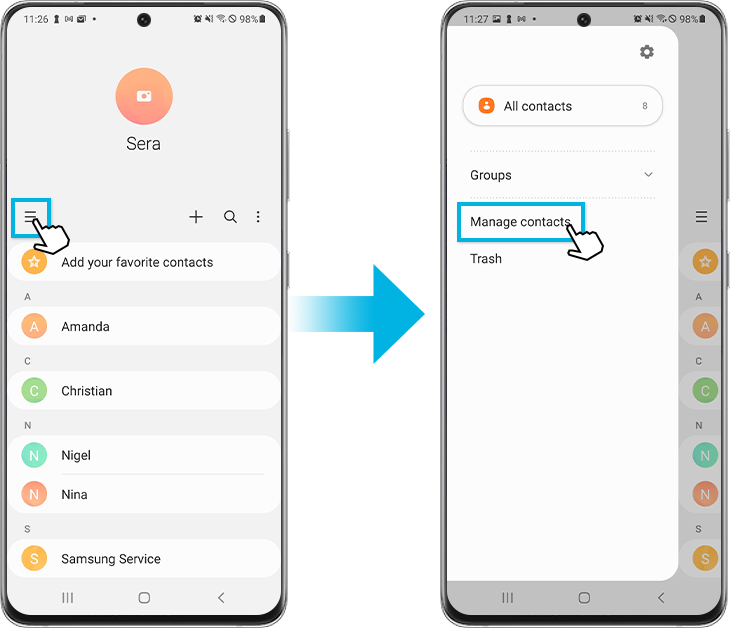
- Tap the Menu icon (three horizontal lines) in the top-left corner.
- Select Manage contacts from the menu.
- Choose Sync contacts and toggle the switch to enable your Google account.
Once syncing is complete, your Google account contacts will be imported into the Contacts app. You can now view and manage both local and synced contacts seamlessly.
4. Additional Things to Check
- Ensure your device is connected to a stable Wi-Fi or mobile data network.
- Verify that your Google account is logged in on your device. If not, go to Settings > Accounts and sync > Add account > Google.
- Back up your contacts on Google's website before syncing to prevent accidental data loss.
5. Setting Google Account as Default Storage Location
To ensure new contacts are automatically saved to your Google account, set it as the default storage location:
- Open the Contacts app and tap the Menu icon.
- Select Manage contacts and choose Set default storage location.
- Select your Google account from the list.
Note: If the storage location is set to My phone or another account, new contacts will not sync with your Google account.
6. Viewing Synced Contacts on Google Website
To view your synced contacts on Google's website:
- Access the Google website using a web browser.
- Sign in to your Google account and tap your profile icon.
- Select Manage your Google account.
- Go to People and sharing and choose Contacts.
All contacts saved to your Google account will be displayed here. Note that menu locations may change based on Google's updates.
7. Troubleshooting Sync Issues
If syncing fails, consider the following:
- Check for software updates under Settings > Software update.
- Ensure your Google account is correctly logged in and has sufficient storage space.
- Restart your device and retry the sync process.
Related Samsung Support Topics
Thank you for your feedback!
Please answer all questions.