How to enable Dolby Atmos on a Samsung Galaxy phone
How to Enable Dolby Atmos Sound on Samsung Galaxy Phones
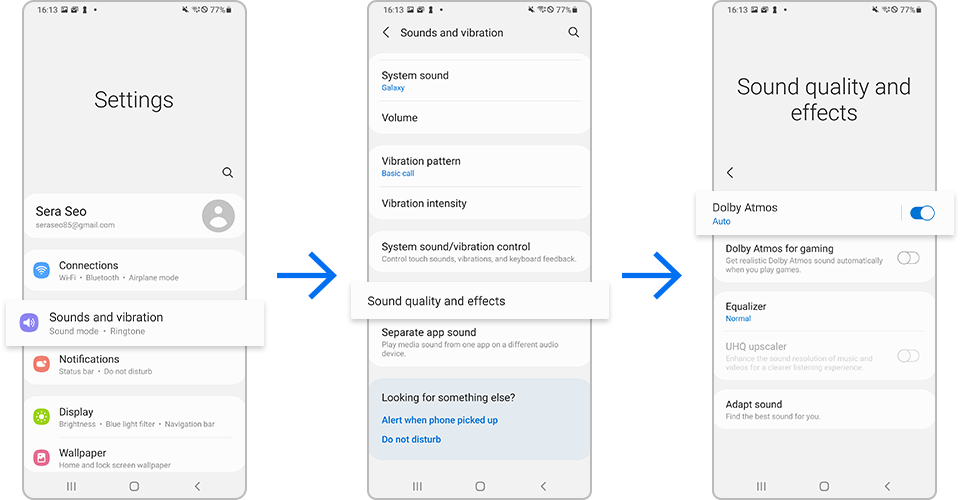
To enable Dolby Atmos on your Samsung Galaxy phone, navigate to Settings > Sounds and vibration > Sound quality and effects, then toggle on Dolby Atmos. You can also access it quickly via the notification panel. This feature enhances audio with 3D surround sound for movies, music, and calls.
1. How to Turn On Dolby Atmos in Settings
- Open the Settings app on your Samsung Galaxy device.
- Scroll down and tap on Sounds and vibration.
- Select Sound quality and effects.
- Toggle on Dolby Atmos.
- Choose a sound profile: Auto, Movie, Music, or Voice.
2. How to Enable Dolby Atmos from the Notification Panel
- Swipe down from the top of your screen to open the notification panel.
- Look for the Sound quality and effects quick setting tile.
- Tap the tile and enable Dolby Atmos.
- Select your preferred sound mode.
3. Supported Samsung Galaxy Devices
Dolby Atmos is available on select Galaxy models, including the Galaxy S24, Galaxy S25, Galaxy Z Fold, Galaxy Z Flip, and newer Galaxy A series devices. Check your device's specifications to confirm compatibility.
4. Why Dolby Atmos Might Not Be Available
- Your device may not support Dolby Atmos due to hardware limitations.
- The feature might be disabled in your region or carrier settings.
- Software updates may temporarily disable the feature until patched.
5. Additional Things to Check
- Ensure your device is running the latest software version.
- Use compatible headphones or speakers for optimal performance.
- Restart your device if the feature doesn't respond after enabling.
6. Related Samsung Support Topics
Thank you for your feedback!
Please answer all questions.