How to clear app cache and data on a Galaxy phone
How to Clear App Cache and Data on Samsung Galaxy Devices
Clearing app cache and data on your Samsung Galaxy phone can resolve performance issues, free up storage space, and fix app malfunctions. This guide covers methods for both individual apps and system-wide optimization using Device Care.
1. Why Should You Clear App Cache and Data?
Over time, apps accumulate temporary files, logs, and cached data that can slow down your device or cause crashes. Clearing cache removes temporary files without affecting personal data, while clearing data resets the app to its default state, deleting all user settings and files.
- Improves device performance and responsiveness
- Frees up internal storage space
- Resolves app crashes, freezing, or slow loading
2. How to Clear App Cache Using Device Care
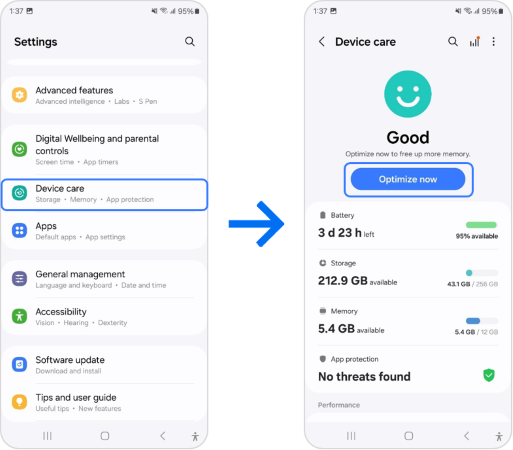
Device Care provides a quick way to clean cached data across all apps. It also optimizes battery usage and closes background apps.
- Open the Settings app on your Samsung Galaxy device.
- Select Device Care.
- Tap Optimize now. The system will automatically clear cache, close unused apps, and optimize battery usage.
- Device Care scans for crashed apps and malware
- Automatically manages abnormal battery consumption
To enable automatic optimization, tap More options > Automation > Auto optimize daily and toggle the switch on.
3. How to Clear Cache for a Specific App
If one app is causing issues, you can clear its cache individually without affecting other apps.
- Go to Settings > Apps.
- Select the app you want to clear the cache for.
- Tap Storage > Clear Cache.
This method retains app settings and user data while removing temporary files.
4. How to Clear App Data
Clearing app data deletes all app-related files, settings, and accounts. Use this only if the app is severely malfunctioning or you want to reset it completely.
- Navigate to Settings > Apps.
- Select the app you want to reset.
- Tap Storage > Clear Data or Clear Storage.
- Confirm the action when prompted.
Note: Clearing data will log you out of the app and delete saved preferences, files, and progress.
5. Additional Things to Check
Before clearing cache or data, ensure your device is up to date:
- Go to Settings > Software Update.
- Tap Download and Install to check for updates.
Also, verify that your device has sufficient storage space. Low storage can prevent proper app functionality and updates.
6. Supported Samsung Galaxy Devices
These steps apply to most Samsung Galaxy devices, including:
Galaxy S24, Galaxy S25, Galaxy S26, Galaxy Z Fold, Galaxy Z Flip, and Galaxy A series devices.
7. Related Samsung Support Topics

Thank you for your feedback!
Please answer all questions.