How to erase all personal data from a Galaxy phone
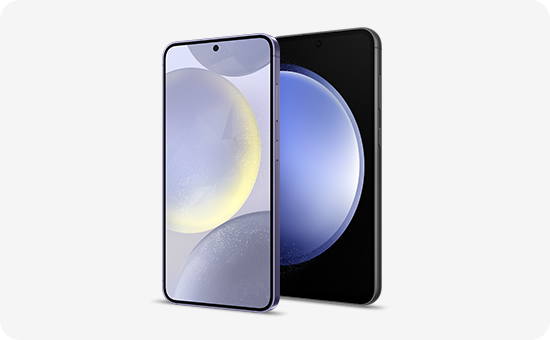
How to delete all personal information from my Samsung Galaxy device?
To completely remove all personal information from your Samsung Galaxy device, you must perform a factory data reset after backing up your data and removing linked accounts. This ensures no recoverable data remains on your device.
1. Why should I delete personal information from my Samsung Galaxy device?
Deleting personal information from your Samsung Galaxy device is crucial when selling, giving away, or recycling your phone. It protects sensitive data such as contacts, photos, messages, and account credentials from unauthorized access.
- Prevents data breaches and identity theft.
- Ensures compliance with privacy regulations.
- Resets the device to its original state for resale or reuse.
2. Supported Samsung Galaxy devices
This guide applies to most Samsung Galaxy devices, including:
Galaxy S24, Galaxy S25, Galaxy S26, Galaxy Z Fold, Galaxy Z Flip, and Galaxy A series.
3. How to back up your data before a factory reset
Before performing a factory reset, back up your data to prevent permanent loss. Use Smart Switch to transfer data to a PC or another device.
- Download and install Smart Switch PC on your computer.
- Connect your Samsung Galaxy device to the PC using a USB cable.
- On your device, tap Allow when prompted to grant access to phone data.
- Open Smart Switch on your PC and select Backup.
- Review your backup files and confirm the process.
- Wait for the backup to complete. The time depends on the amount of data being backed up.
Note: Smart Switch does not transfer hidden files or files in the Secure Folder. Disable security settings to access these files.
4. How to remove a Google account from your Samsung Galaxy device
Disconnecting your Google account prevents Factory Reset Protection (FRP) from locking your device after a reset.
- Go to Settings > Accounts and backup > Accounts.
- Select the Google account you want to remove.
- Tap Remove account and confirm the action.
- Repeat for all linked Google accounts.
Important: If you forget your Google account password, visit a Samsung service center for assistance.
5. How to perform a factory data reset
A factory data reset erases all personal data, apps, and settings from your Samsung Galaxy device.
- Open Settings on your device.
- Navigate to General management > Reset > Factory data reset.
- Review the warning message and tap Delete all.
- Enter your PIN, password, or pattern to confirm.
- Wait for the reset process to complete. Your device will restart automatically.
Note: A factory reset does not delete data stored on an SD card. Remove the SD card or format it separately.
6. What is Factory Reset Protection (FRP)?
FRP is a security feature that requires Google account authentication after a factory reset. It helps prevent unauthorized access to lost or stolen devices.
- FRP was introduced with Android 5.1 (Lollipop).
- If you forget your Google account credentials, visit a Samsung service center for help.
7. Additional things to check
Ensure your device is fully prepared before resetting:
- Update your device software to the latest version.
- Remove all linked accounts, including Samsung and third-party services.
- Check for any pending software updates or security patches.
8. When updates may not appear
Software updates may not appear due to:
- Insufficient storage space.
- Unstable Wi-Fi or mobile data connection.
- Region-specific update delays.
Related Samsung support topics

Thank you for your feedback!
Please answer all questions.