How to use Dual Audio on a Galaxy phone
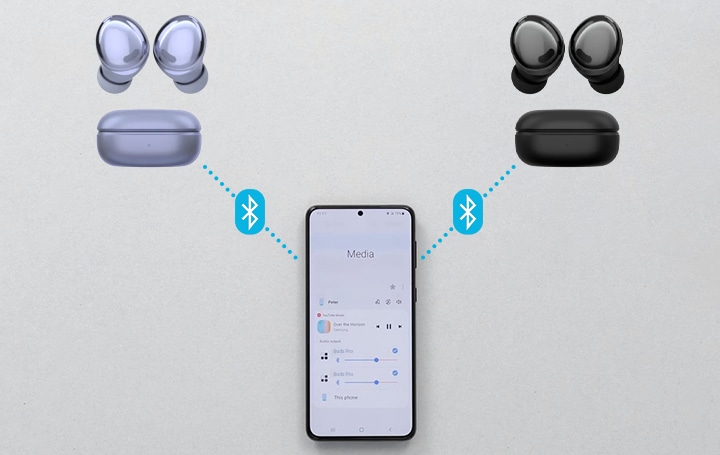
How to Use Dual Audio on Samsung Galaxy Devices
Dual Audio allows you to stream the same audio to two Bluetooth devices at once, such as headphones or speakers. This feature works on supported Samsung Galaxy devices with Bluetooth 5.0 or later. Follow these steps to set it up and troubleshoot common issues.
1. What is Dual Audio on Samsung Galaxy?
Dual Audio is a feature that lets you share media audio with two Bluetooth devices simultaneously. Whether you want to listen to music or watch videos with a friend using separate headphones or connect two speakers, Dual Audio makes it possible without needing physical earbud sharing.
- Dual Audio supports two different Bluetooth devices with independent volume controls.
- It works with Bluetooth headphones, earbuds, and speakers.
- The feature is available on select Samsung Galaxy devices with Bluetooth 5.0 or higher.
2. How to Enable Dual Audio on Samsung Galaxy
To use Dual Audio, you must first pair both Bluetooth devices to your Samsung Galaxy phone. Here's how:
- Go to Settings > Connections.
- Tap Bluetooth and turn the switch on.
- Enter pairing mode on both Bluetooth devices. For most devices, press and hold the power button until the LED light flashes.
- Swipe down from the top of the screen to open the Quick Panel.
- Tap Media to view connected devices.
- Select both devices to enable Dual Audio.
- Play your media, and the audio will stream to both devices simultaneously.
3. Why Dual Audio Might Not Work
If Dual Audio isn't working, here are some possible reasons and fixes:
- Bluetooth version mismatch: Dual Audio requires Bluetooth 5.0 or later. Check your device's specifications to confirm compatibility.
- Media settings missing in Quick Panel: If the Media option isn't visible, ensure the Devices and Media buttons are enabled.
- One or both devices aren't paired: Make sure both devices are successfully connected via Bluetooth.
- Software issues: Restart your Samsung Galaxy device and reconnect the devices.
4. How to Enable Media Settings in Quick Panel
If the Media option isn't visible in the Quick Panel, follow these steps to enable it:
- Swipe down from the top of the screen with two fingers to open the Quick Panel.
- Tap the Edit icon (pencil symbol).
- Find and tap the Device Control and Media Output buttons.
- Choose Show when Quick Panel collapsed or Do not show based on your preference.
5. Supported Samsung Galaxy Devices
Dual Audio is available on select Samsung Galaxy devices with Bluetooth 5.0 or later. Compatible models include:
- Galaxy S24 series
- Galaxy S25 series
- Galaxy Z Fold series
- Galaxy Z Flip series
- Galaxy A series (select models)
6. Related Samsung Support Topics
Thank you for your feedback!
Please answer all questions.