How to connect a Samsung washer to SmartThings
How to control my Samsung washing machine using SmartThings?
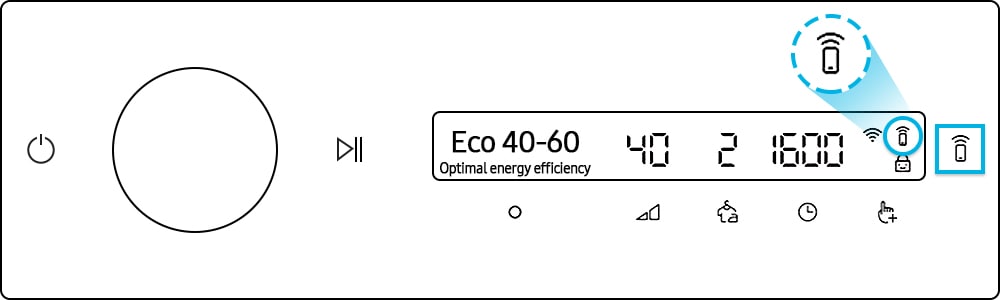
To control your Samsung washing machine with SmartThings, ensure your device is connected to the app and activate Smart Control on the washing machine. Once enabled, you can remotely select cycles, adjust settings like water temperature and spin speed, and monitor wash progress.
1. How to activate Smart Control on your Samsung washing machine
To begin controlling your washing machine through SmartThings, follow these steps:
- Press the [Smart Control] button on your washing machine's control panel.
- Check the indicator light:
- If inactive, "Send to Washer" will appear on the button.
- If active, "Start" will appear on the button.
2. How to select and customize laundry cycles via SmartThings
Once Smart Control is activated, you can manage your washing machine remotely:
- Open the SmartThings app and tap the blue box in the center of the washing machine interface.
- Scroll through the cycle list and select your preferred laundry cycle.
- Tap the [OK] button to confirm your selection.
3. How to adjust laundry options using SmartThings
You can fine-tune various settings for your wash cycle:
- Water Temperature Control: Tap [Temp.] to choose your desired temperature and confirm with [OK].
- Number of Rinses: Tap [Rinse] to set the number of rinse cycles and confirm with [OK].
- Spin Speed: Tap [Spin] to select the rotation speed (measured in RPM). Higher speeds extract more water, reducing drying time.
4. How to create custom laundry cycles
For personalized routines, you can create and save your own laundry cycles:
- Select the cycles you frequently use from the list.
- Tap the [Plus] button to add a cycle or the [Minus] button to remove one.
- Tap [Save] to finalize your custom cycle.
5. Additional features available via SmartThings
Enhance your laundry experience with these SmartThings features:
- Safe Mode for Leaving Laundry:
1) Going Out Mode: Receive a delay alarm before the cycle starts when you're away.
2) Remaining Laundry Alarm: Get notified if laundry remains in the machine after the cycle ends. Use Rinse + Spin to prevent odors.
- Setting Favorite Laundry Cycles: Customize a cycle with your preferred options (temperature, rinse, spin, etc.), assign a name, and save it.
6. How to start or stop a wash cycle remotely
- To start: Tap the [Start] button in the SmartThings app.
- To stop: Tap [Cancel] or [Pause], then confirm with [Yes].
Supported Samsung washing machine models
SmartThings compatibility applies to select Samsung washing machines, including modern models like the Galaxy-connected series. Check your device manual for specific compatibility details.
Related Samsung support topics
Thank you for your feedback!
Please answer all questions.