How to connect a Samsung AC to SmartThings
1. What are the requirements for connecting to SmartThings?
Before connecting your smartphone to your Samsung air conditioner via SmartThings, ensure your device meets the following requirements:
- Operating System: Android 6.0 or higher / iOS 10.0 or higher.
- Device Type: Smartphone or tablet (iPhone 6 or newer, iPad).
- Memory Size: 2 GB or more.
- Screen Resolution: Android: 1280x720 (HD), 1920x1080 (FHD), 2560x1440 (WQHD). iOS: 1334x750, 1920x1080.
- App Preload Criteria: 2 GB memory or more, Bluetooth profile 4.0 or higher, Wi-Fi mirroring capability.
2. How do I connect my smartphone to the Wi-Fi network?
To ensure a stable connection, follow these steps:
- Go to your smartphone's Settings → Connection → Wi-Fi.
- Select your router and enter the password if required.
- Confirm the connection status shows as "connected."
- Ensure the router name (SSID) uses English letters, numbers, or symbols (no special characters).
- Use a 2.4 GHz Wi-Fi connection for air conditioners.
- At least three Wi-Fi network receiving antennas should be displayed.
- Both your smartphone and air conditioner must connect to the same router.
3. How do I install the SmartThings app?
Download and install the SmartThings app from your device's app store:
- Visit the Google Play Store, Apple App Store, or Samsung Galaxy Apps.
- Search for "SmartThings" and install the app.
4. How do I set up a Samsung account?
To use SmartThings, you need a Samsung account:
- Sign in to a Samsung account within the SmartThings app.
- If you don't have one, follow the app's instructions to create an account.
- If you own a Samsung smartphone, you can also add your Samsung account in the Settings app for automatic login.
5. How do I connect my air conditioner to SmartThings?
Follow these steps to connect your Samsung air conditioner:
- Ensure your air conditioner and Wi-Fi router are powered on.
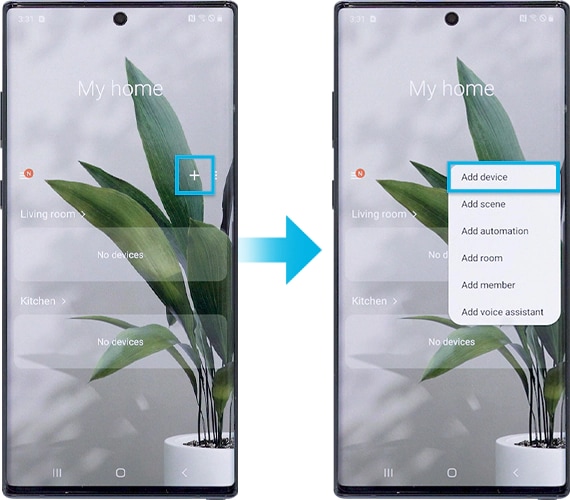
- Open the SmartThings app and tap the plus button, then select [Add device].
- Choose [Air conditioner] and [Room air conditioner].
- Tap [Start] and select your preferred location and room.
- Press and hold the Timer button on the remote control until the air conditioner icon appears in the app.
- Press the power button on the air conditioner.
- Enter your Wi-Fi information to connect both devices.
- Wait for the air conditioner to register with your Samsung account.
- Set a name for your air conditioner once registration is complete.
6. What else should I check for a successful connection?
- Ensure your air conditioner supports SmartThings connectivity.
- Verify your Wi-Fi network is stable and within range of both devices.
- Update the SmartThings app to the latest version.
7. Supported Samsung Galaxy devices
The SmartThings app is compatible with most Samsung Galaxy devices, including:
Galaxy S24, Galaxy S25, Galaxy S26, Galaxy Z Fold, Galaxy Z Flip, and Galaxy A series.
8. Related Samsung support topics
Thank you for your feedback!
Please answer all questions.