How to use a Samsung Jet Bot with SmartThings
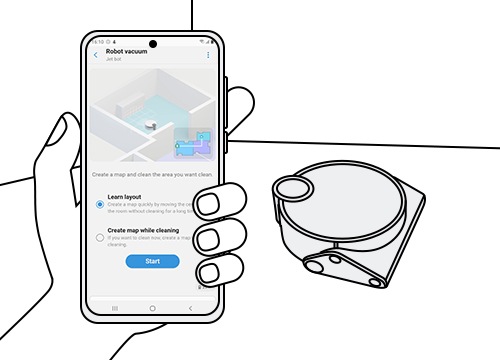
1. How to Connect Your Jet Bot to SmartThings
Follow these steps to link your Jet Bot to the SmartThings app:
- Ensure your Jet Bot and smartphone are connected to the same Wi-Fi network.
- Open the SmartThings app and sign in with your Samsung account.
- Tap the "+" icon to add a new device and select "Robot (Vacuum Cleaner)."
- Follow the on-screen instructions to complete the setup process.
- Once connected, the Robot card will appear on the SmartThings home screen.
2. Customizing Your Jet Bot Settings
After connecting your Jet Bot, explore these customizable features:
- Sound Mode: Choose between Voice, Effect, or Silence.
- Language: Select from 14 available languages.
- Volume: Adjust to Silent, Level 1, Level 2, or Level 3.
- Prohibited Time: Set specific times when Jet Bot won't clean.
- Avoidance Obstacle Size: Choose Small, Medium, or Large sensitivity.
- Wall Cleaning Option: Enable or disable cleaning around walls (AI+ models only).
3. Using SmartThings to Control Your Jet Bot
Manage your Jet Bot remotely using these SmartThings features:
- Cleaning Modes: Select from three modes for efficient cleaning.
- Suction Power: Adjust suction strength for different cleaning needs.
- Real-Time Location: View Jet Bot's position and cleaning path on a map.
- Cleaning Results: Check cleaning time, area covered, and avoided obstacles.
4. Managing Maps and Cleaning Zones
Optimize cleaning by creating and editing maps:
- Tap the "Manage Maps" section in the SmartThings app.
- Use the blue box to set cleaning zones around furniture or appliances.
- Edit or delete existing maps to reflect changes in your home layout.
5. Scheduling and Device Care
Set up cleaning schedules and monitor device health:
- Cleaning Reservation: Schedule sessions with specific modes and suction strength.
- HomeCare Wizard: Track consumable usage and receive replacement reminders.
- Weekly Usage: Review cleaning patterns and frequently used times.
6. Supported Samsung Jet Bot Models
Compatible models include Jet Bot, Jet Bot+, and Jet Bot AI+. Note that certain features, like Around Furniture and Wall Cleaning Options, are exclusive to AI+ models.
7. Troubleshooting Connection Issues
If your Jet Bot fails to connect to SmartThings, try these solutions:
- Ensure both devices are on the same Wi-Fi network.
- Restart the SmartThings app and your smartphone.
- Update the SmartThings app and Jet Bot firmware to the latest versions.
Related Samsung Support Topics
Thank you for your feedback!
Please answer all questions.